Documents referenced:
- https://github.com/micromdm/nanomdm/blob/main/docs/quickstart.md
- https://github.com/micromdm/micromdm/blob/main/docs/user-guide/quickstart.md#configure-an-apns-certificate
Here is what I did to get NanoMDM up and running in my homelab!
Certificate Hell!
- Download
mdmctlfrom https://github.com/micromdm/micromdm/releases - Move
mdmctlbinary into Path. I chose/usr/bin/local/(Gatekeeper warning incoming) (on your local machine fyi,mdmctlnot needed on the server.) - Actual need to start here, NanoMDM’s quickstart needs updating. I will be making a PR soon™.
- Configure
mdmctlwith:
mdmctl config set \
  -name production \
  -api-token MySecretAPIKey \
  -server-url https://my-server-url
So I did:
mdmctl config set -name production -api-token {Secure API token} -server-url https://nano.openedmac.com
mdmctl config switch -name production
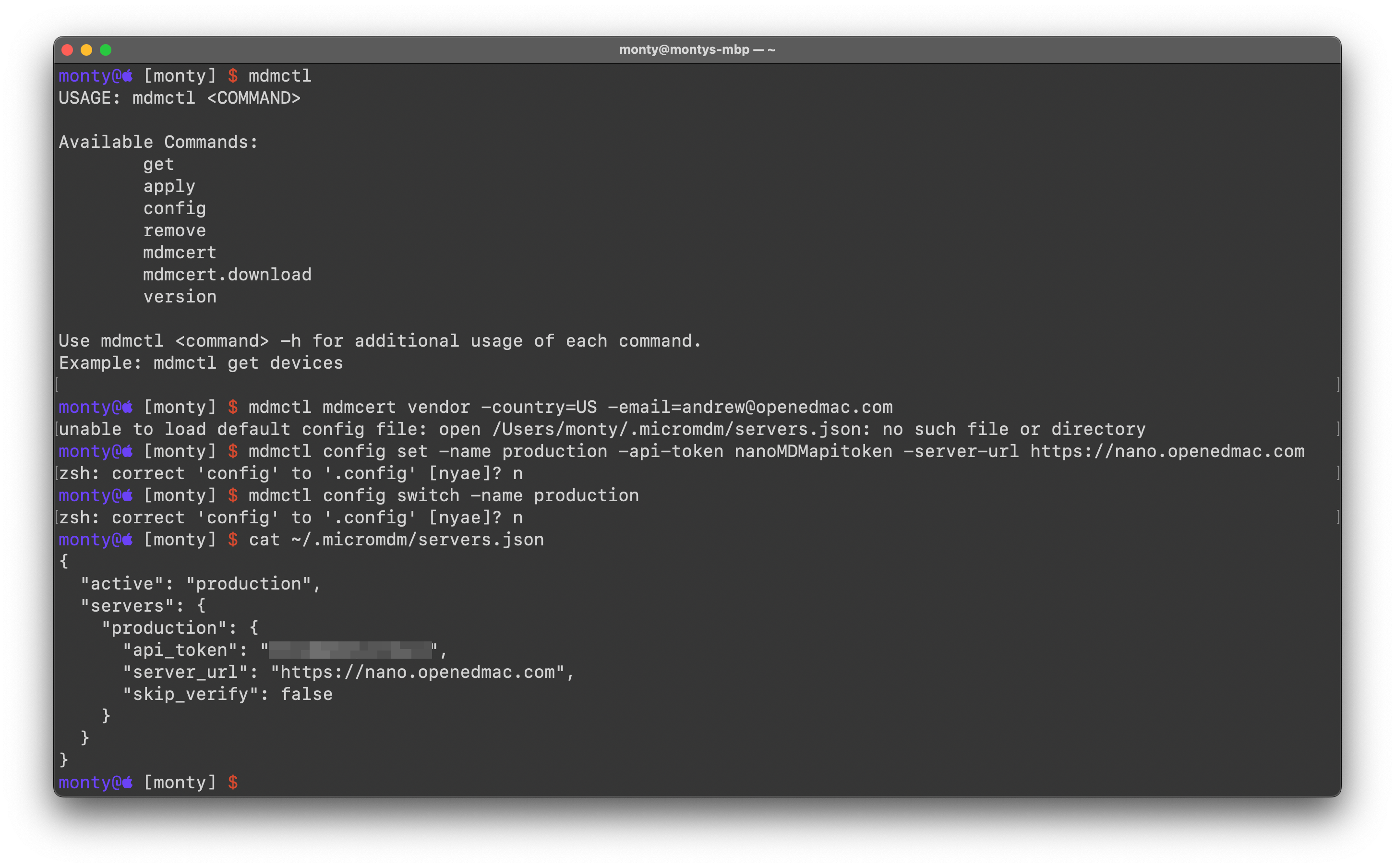
I believe, you can actually just put whatever you want in for the name, api-token and server-url because mdmctl forces you to have a config set before using it, but since we are using NanoMDM we won’t be using mdmctl for anything but generating CSRs and signing. I didn’t realize that till after the fact (I also may be wrong in that assumption).
- Generate MDM Vendor CSR:
mdmctl mdmcert vendor -password=secret -country=US -email=admin@acme.co
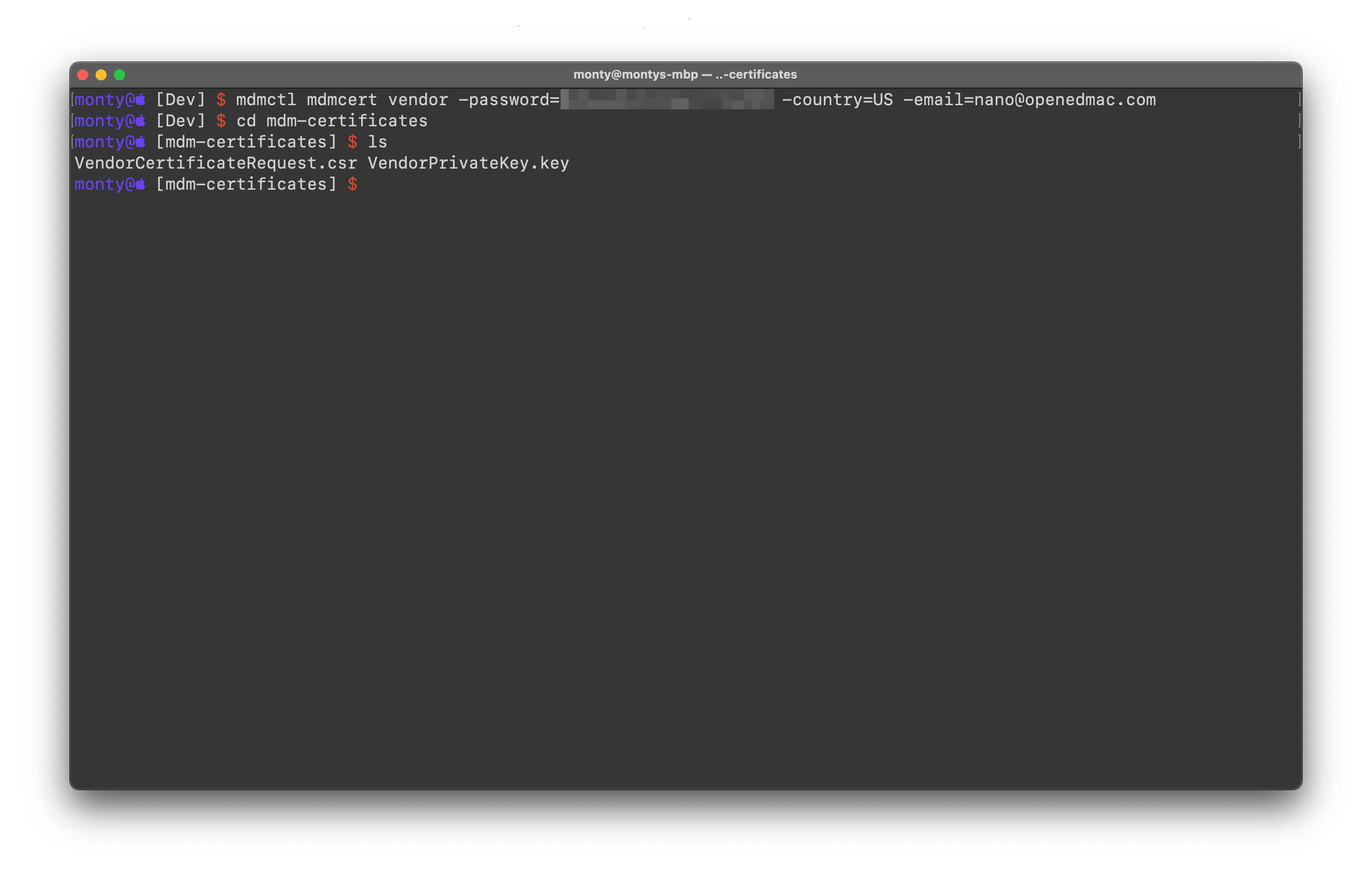
So I did:
mdmctl mdmcert vendor -password={Secure Pasword} -country=US -email=nano@openedmac.com
Straight from MicroMDM’s Quickstart.md:
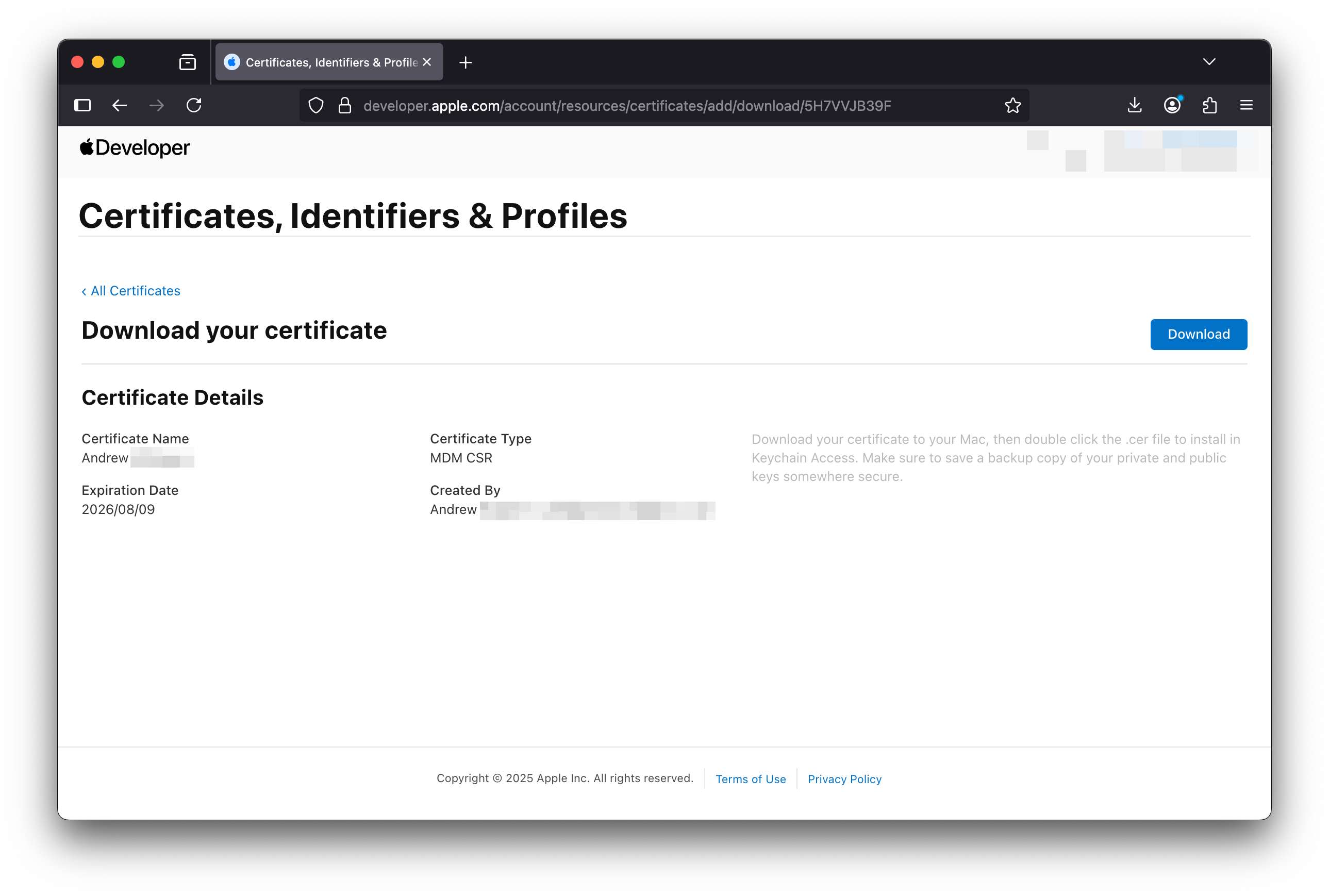
Log in to the Apple Developer Portal (https://developer.apple.com/account), and navigate to the Certificates, IDs & Profiles section (https://developer.apple.com/account/resources/certificates/list).
Click the plus symbol (+) next to Certificates Select MDM CSR under the Services section, click Continue Upload the VendorCertificateRequest.csr file, click Continue Click Download to download the certificate. Move the downloaded certificate file (likely called mdm.cer) to the mdm-certificates folder.
You now have the vendor side of the certificate flow complete, and you need to complete the customer side of this flow, with the help of the vendor cert.
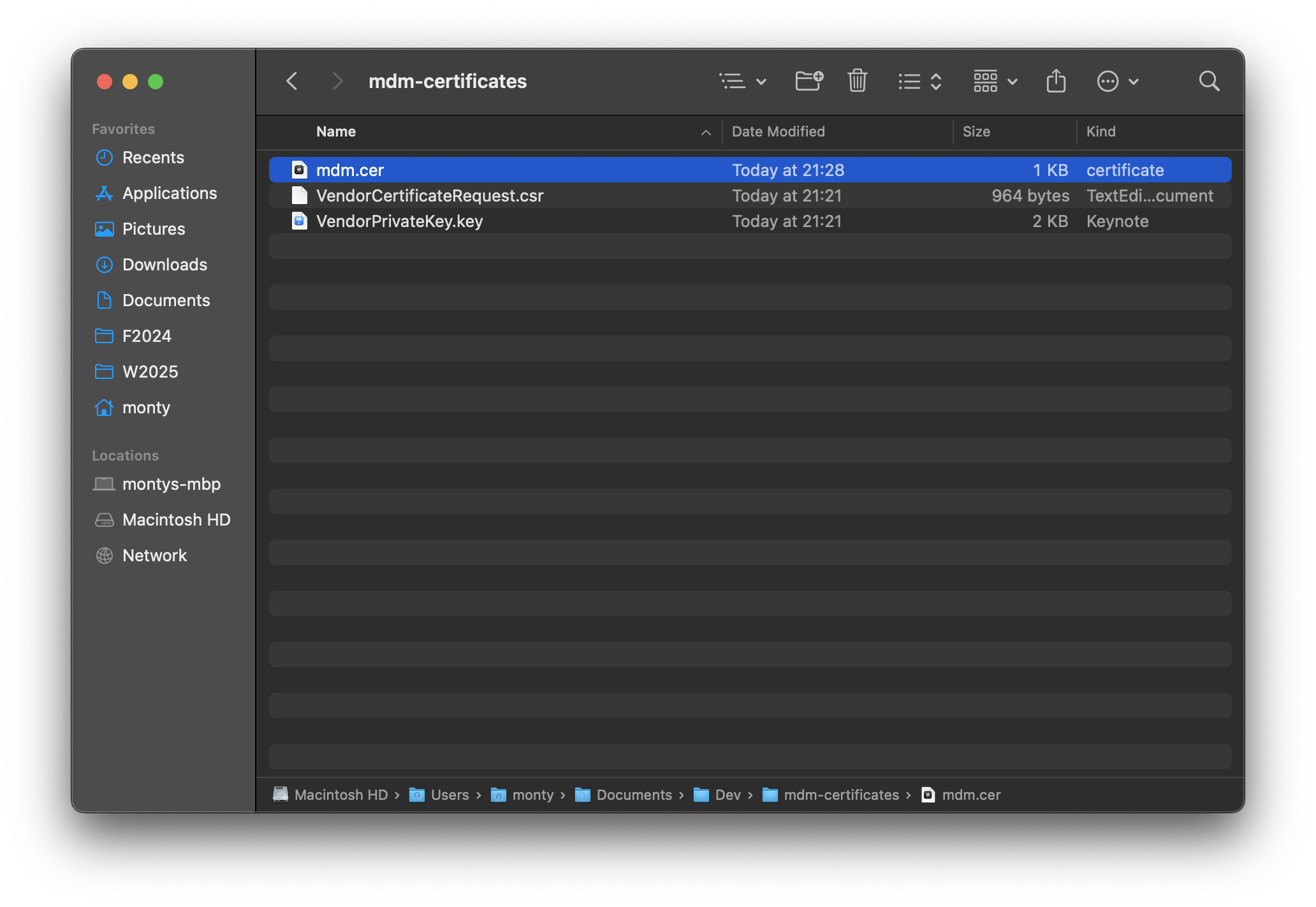
Now our mdm-certificates directory looks like this:
- Create the APNS CSR.
mdmctl mdmcert push -password=secret -country=US -email=admin@acme.co
I believe password is supposed to be different from the Vendor CSR encryption password. So I did:
mdmctl mdmcert push -password={Another Secure Password} -country=US -email=nano@openedmac.com
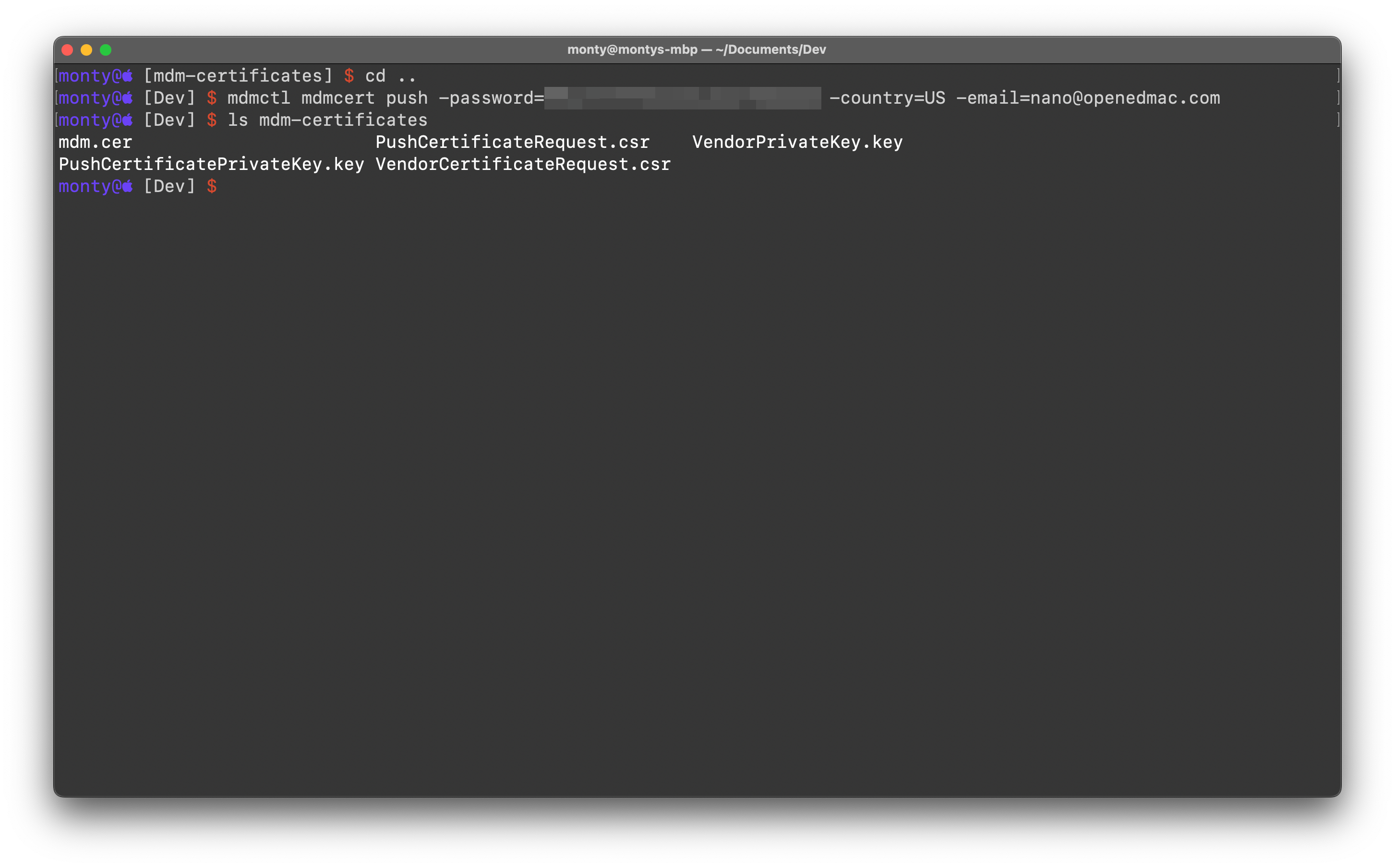
- Sign the APNS CSR with our Vendor Certificate.
mdmctl mdmcert vendor -sign -cert=./mdm-certificates/mdm.cer -password=secret
So this password is the Vendor CSR’s password from step 5. So mine was:
mdmctl mdmcert vendor -sign -cert=./mdm-certificates/mdm.cer -password={Secure Password}
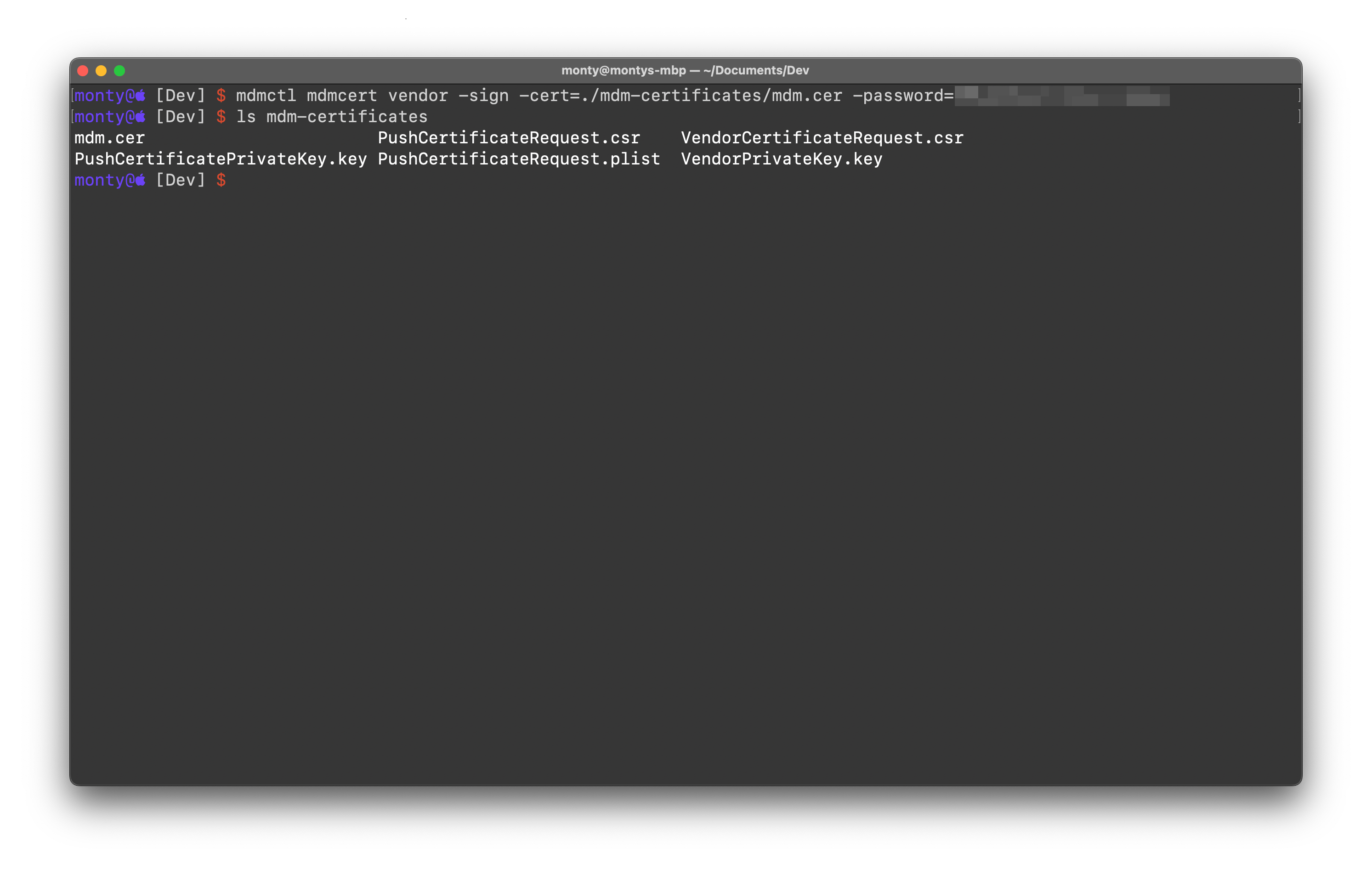
This creates the PushCertificateRequest.plist that we send to Apple.
- Get APNS Certificate
From MicroMDM’s Quickstart.md again:
Sign in to identity.apple.com and upload the
PushCertificateRequest.plistfile to get the APNS certificate. The site offers a notes field, it’s a good idea to use it to mark which server you’re obtaining a certificate for, as you will come back for renewals.If you’re getting certificates for multiple environments (staging, production) or running multiple in house MDM instances, you MUST sign a separate push request for each one. Using the same vendor certificate is okay, but using the same push certificate is not.
If you’ve uploaded the plist, you will be offered a certificate, which is signed for the
mdm-certificates/PushCertificatePrivateKey.keykey. Copy the certificate to the same directory.
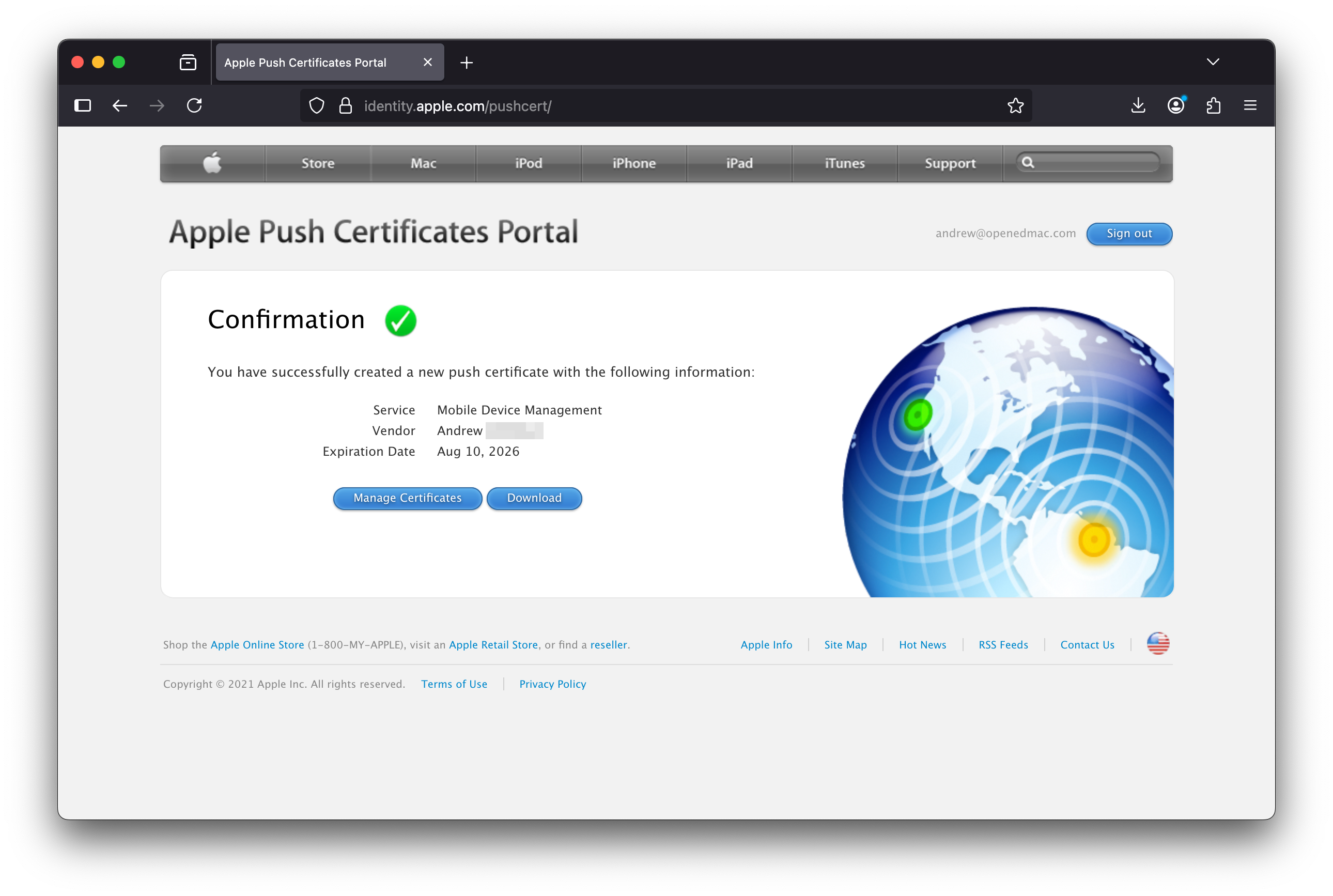
- Now we have a
MDM_{Developer account name}_Certificate.pemcertificate. We can jump back to the NanoMDM specific quickstart guide now, thanks Micro!
SCEP time!
- ssh into your nano’s server, lets start a SCEP server.
- Download the micromdm SCEP project from https://github.com/micromdm/scep/releases
mkdir SCEP && cd SCEP
curl -RLO https://github.com/micromdm/scep/releases/download/{version}/{platform&architecture}
unzip {scep.zip}
- Init SCEP CA certificate
./scepserver-linux-amd64 ca -init
This creates the depot/ directory and creates a ca.pem file.
- Start SCEP server
./scepserver-linux-amd64 -allowrenew 0 -challenge nanomdm -debug
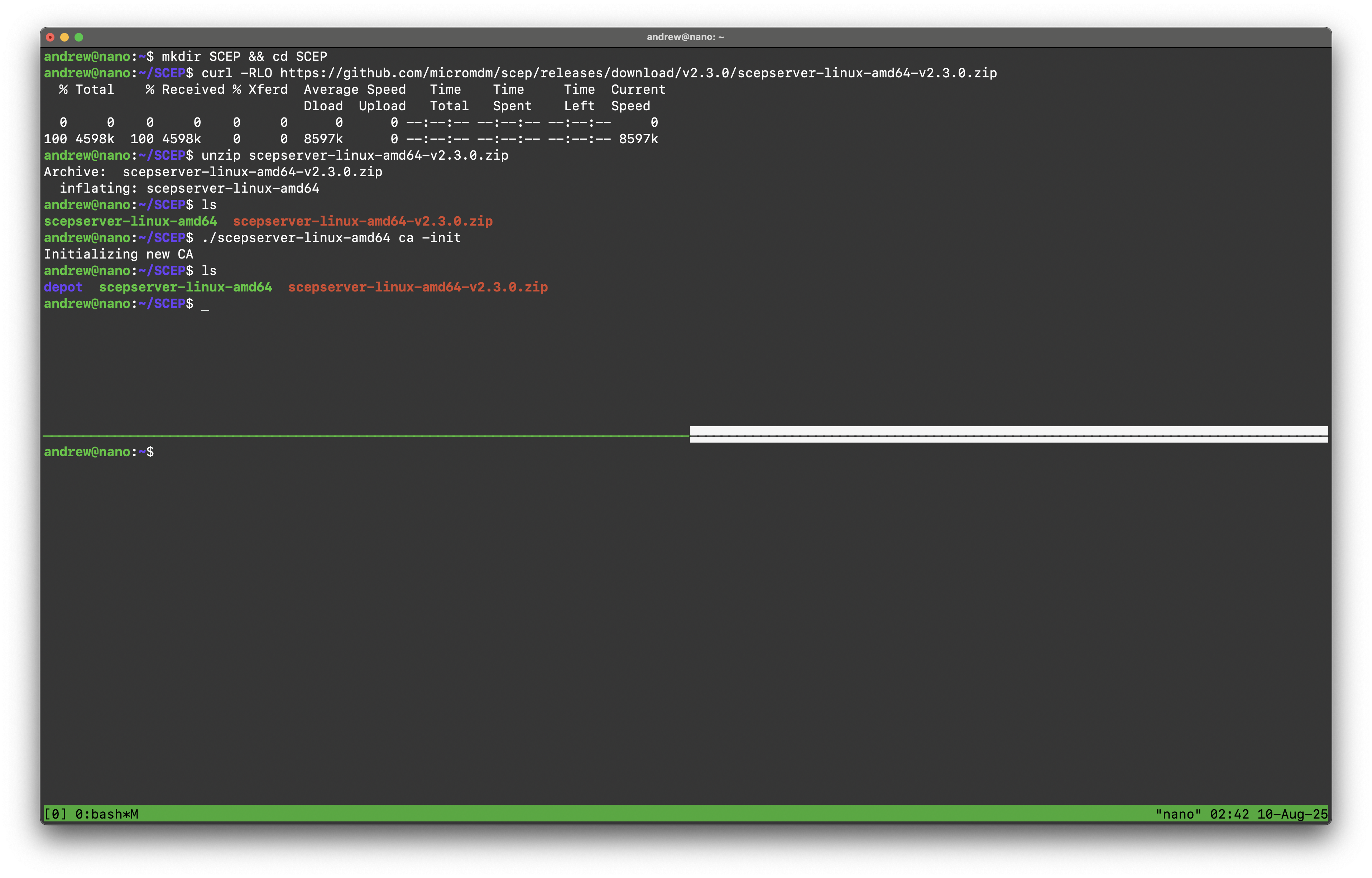
Since I have a reverse proxy running in my homelab, I do not use ngrok as the nanomdm quickstart guide starts to go into. Instead I have created local DNS records and Reverse Proxy records so scep.openedmac.com goes to my SCEP server on port 8080. Check NanoMDM’s quickstart.md for how to work with ngrok.
Get SCEP CA Certificate for NanoMDM
curl 'https://{ngrok domain}/scep?operation=GetCACert' | openssl x509 -inform DER > ca.pem
or for me
curl 'https://scep.openedmac.com/scep?operation=GetCACert' | openssl x509 -inform DER > ca.pem
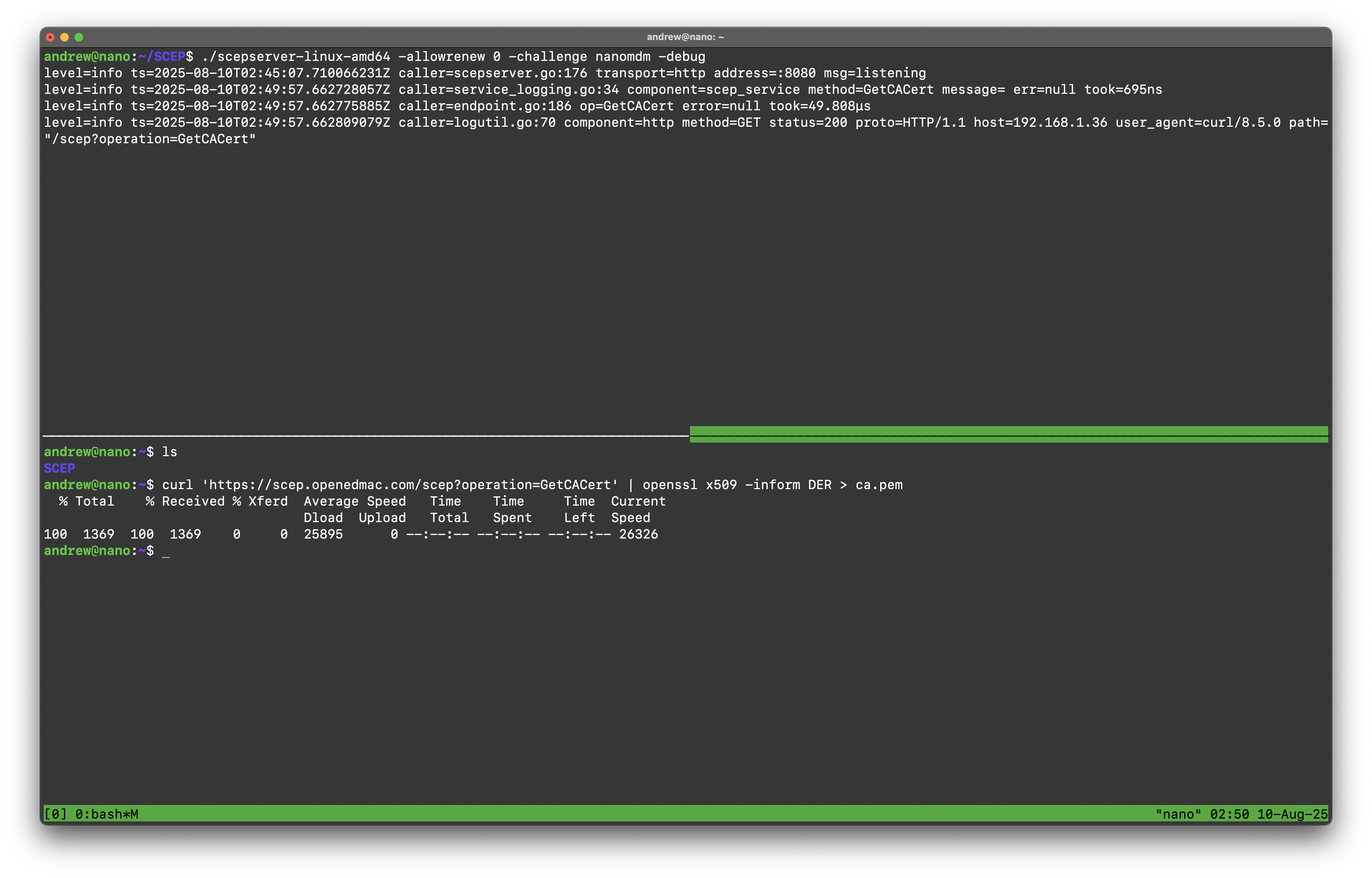
You want to get the ca.pem file on the NanoMDM server. This step is not really neccessary for me since the SCEP and NanoMDM servers are the same machine, but it is also a test to see if the SCEP server is working.
NanoMDM time!
- Download the nanoMDM project from https://github.com/micromdm/nanomdm/releases
mkdir NANO && cd NANO
curl -RLO https://github.com/micromdm/nanomdm/releases/download/{version}/{platform&architecture}
unzip {nanomdm.zip}
- Run the nanoMDM server
./nanomdm-linux-amd64 -ca ../../ca.pem -api nanomdm -debug
../../ca.pemis the relative path to the ca certificate we got from the SCEP server.“By default the file storage backend will write enrollment data into a directory called db.” - NanoMDM quickstart. I believe this has changed. I think it is
dbkvnow.Note: API keys are simple HTTP Basic Authorization passwords with a username of “nanomdm”. This means that any proxies, like ngrok, will have access to API authentication.
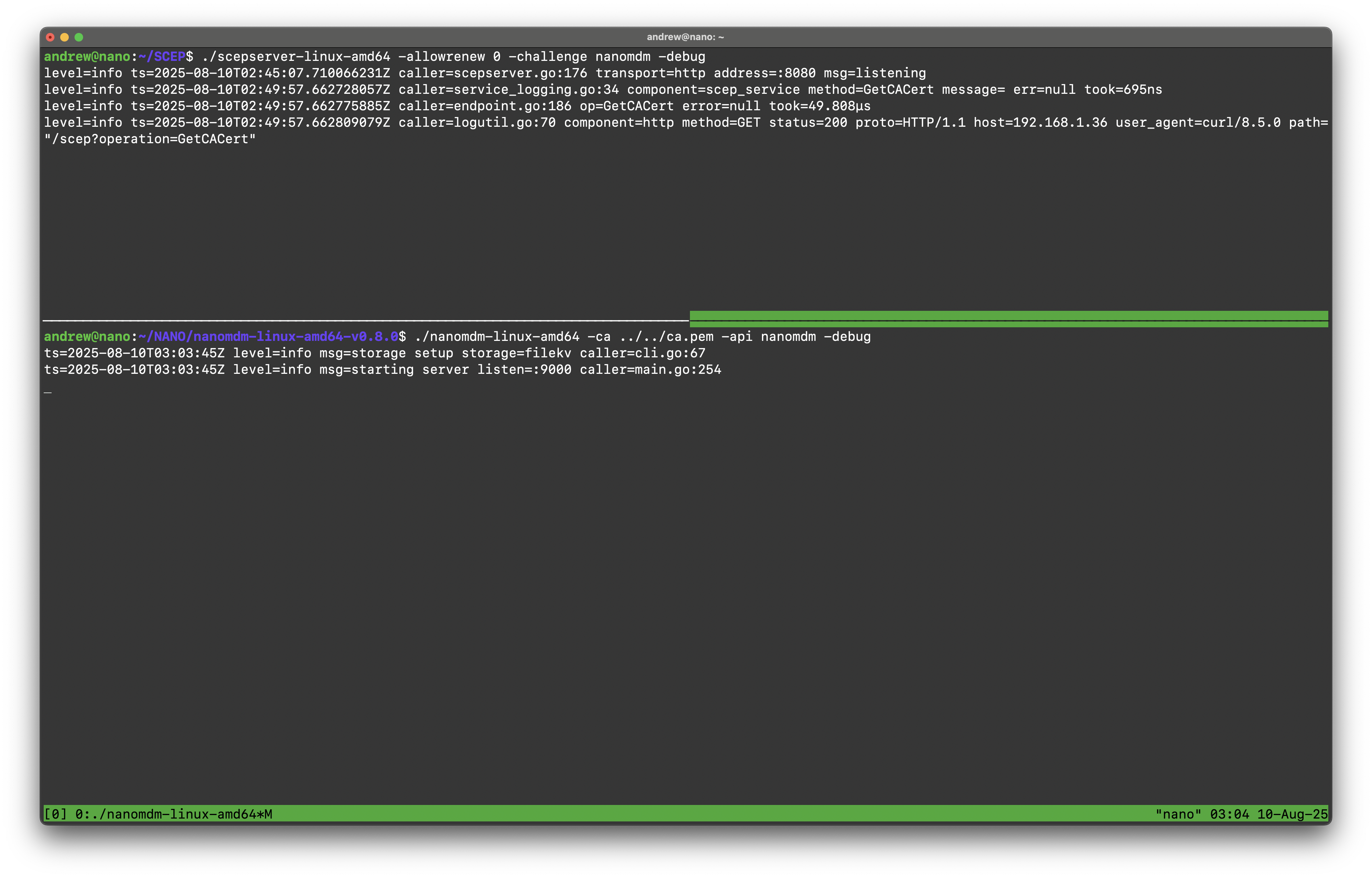
Again, I have the proxy so I don’t use ngrok as the quickstart guide does so I have made another local DNS record and Proxy for the nanoMDM server to run on port 9000 on nano.openedmac.com. Check quickstart for ngrok instructions (there is some funky stuff you have to do to run 2 ngrok tunnels at once on a free tier).
Upload the push cert via nanoMDM API
**note: I’m back on my local machine, the server is pretty much setup.
cat /path/to/push.pem /path/to/push.key | curl -T - -u nanomdm:nanomdm 'http://127.0.0.1:9000/v1/pushcert'
for ngrok/same machine testing.
For me I did:
cat ./mdm-certificates/MDM_Openedmac_Certificate.pem ./mdm-certificates/PushCertificatePrivateKey.key | curl -T - -u nanomdm:nanomdm 'https://nano.openedmac.com/v1/pushcert'
And got:
{
	"error": "private key PEM appears to be encrypted",
	"not_after": "0001-01-01T00:00:00Z"
}
Which I believe is because the documentation is a bit messed up, so I will submit a PR to get that fixed.
To fix it now,
openssl rsa -in ./mdm-certificates/PushCertificatePrivateKey.key -out ./mdm-certificates/PushCertificatePrivateKey.pem
at the prompt, put in the APNS CSR password from step 6.
I found this fix in https://github.com/micromdm/nanomdm/issues/106.
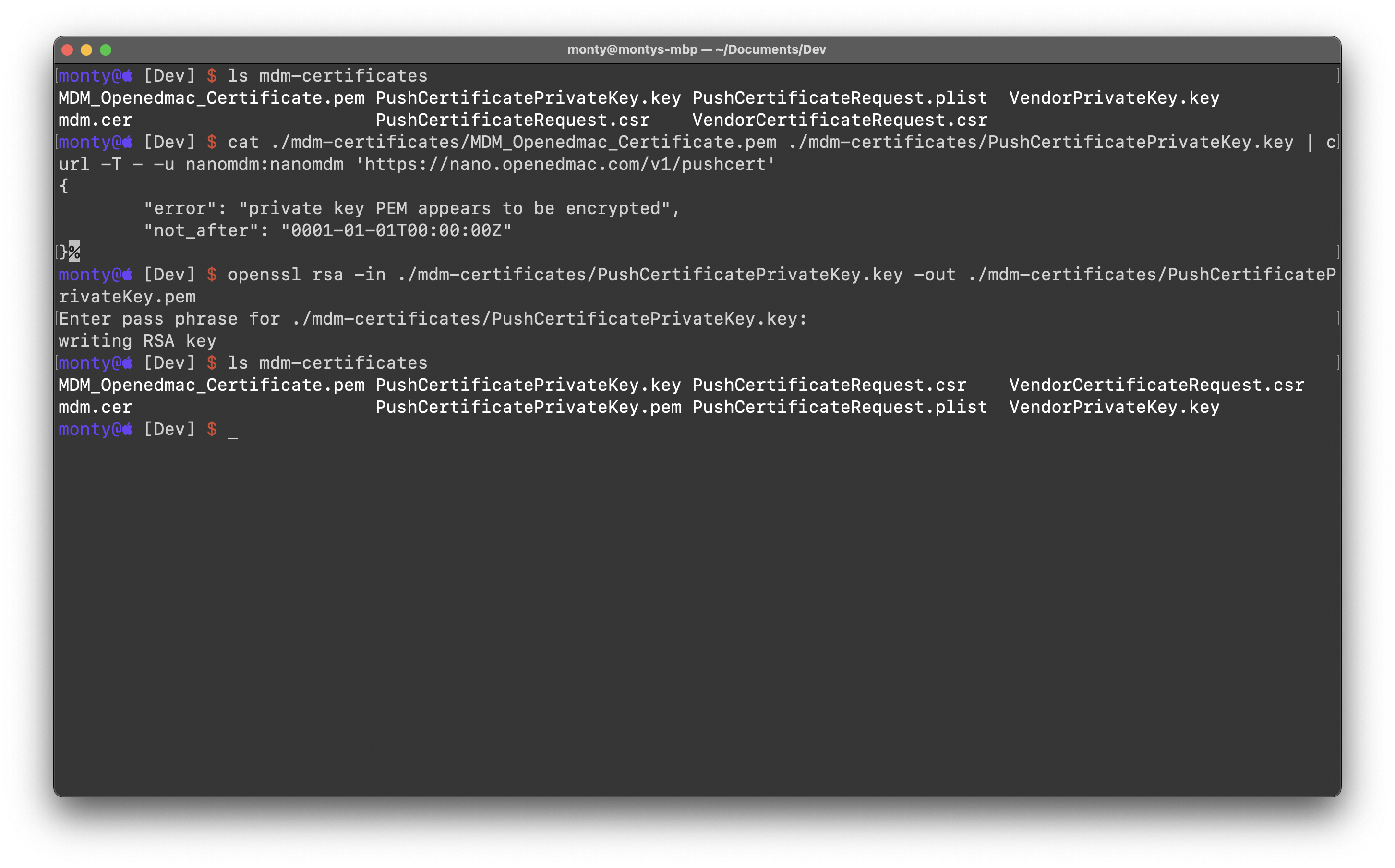
So redoing that
cat ./mdm-certificates/MDM_Openedmac_Certificate.pem ./mdm-certificates/PushCertificatePrivateKey.pem | curl -T - -u nanomdm:nanomdm 'https://nano.openedmac.com/v1/pushcert'
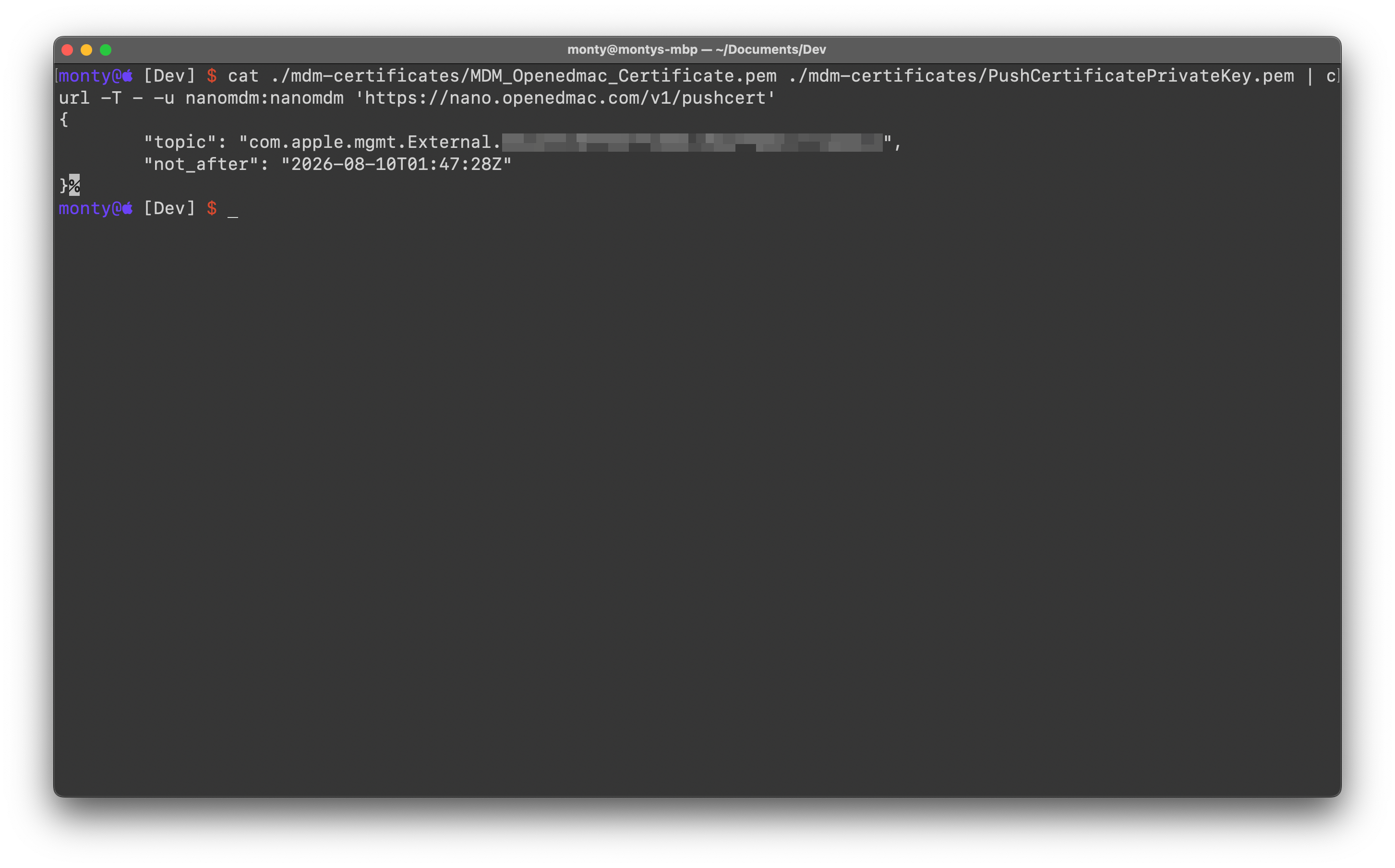
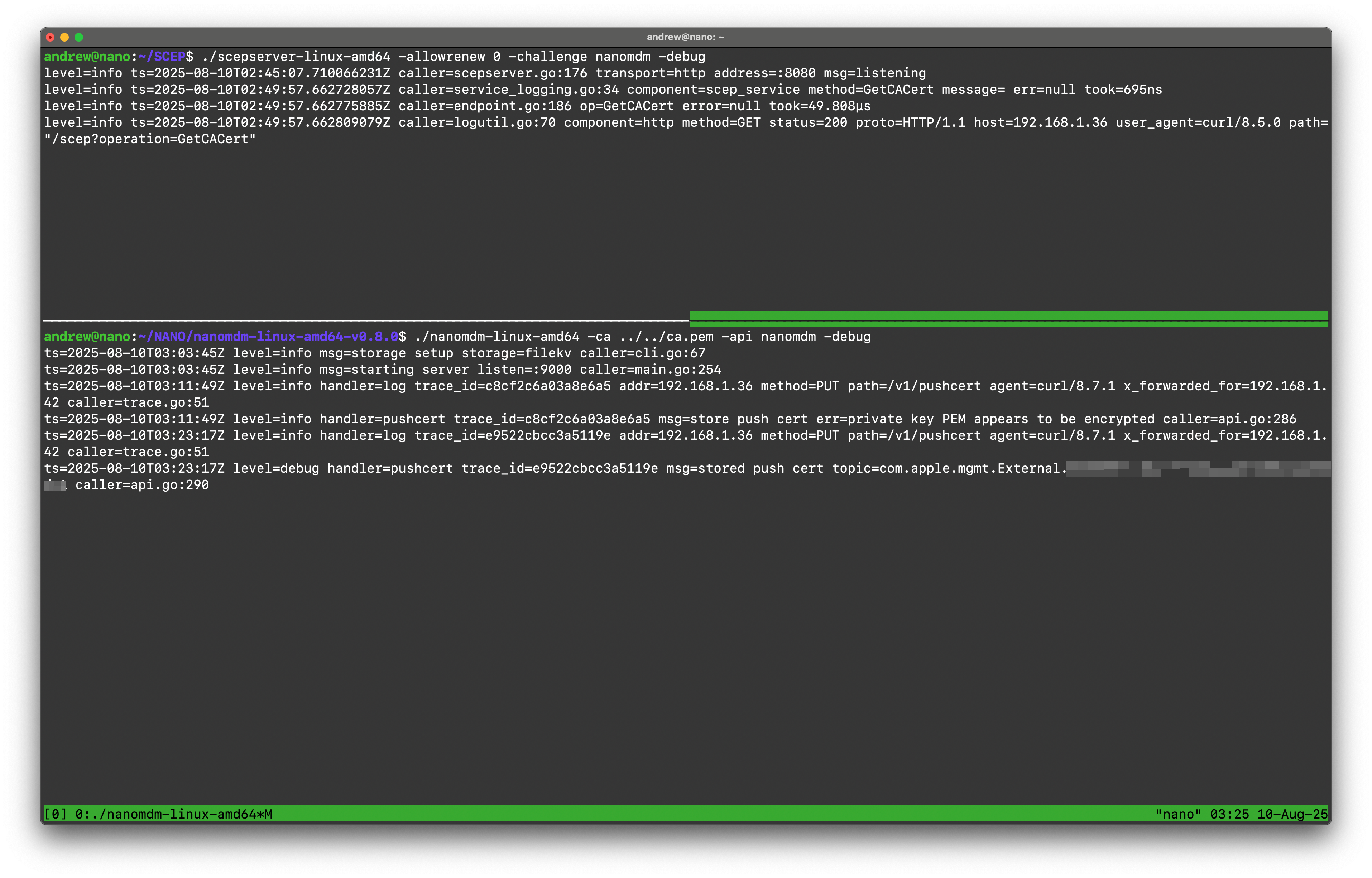
You want to note the Topic you get. It is very important in the MDM protocol.
Configure the Enrollment Profile
- Download the example/starter plist file from the NanoMDM project: https://github.com/micromdm/nanomdm/blob/main/docs/enroll.mobileconfig
You have to make edits to this fyi.
a. Under Challenge, change SCEP-CHALLENGE-HERE -> nanomdm (We configured this in step 13).
b. Under URL, change https://mdm.example.org/scep -> https://yourdomain.orngrok/scep, mine was https://scep.openedmac.com/scep
c. Under ServerURL, change https://mdm.example.org/mdm -> https://yourdomain.orngrok/mdm, mine was https://nano.openedmac.com/mdm
d. Under Topic, change com.apple.mgmt.External.YOUR-PUSH-TOPIC-HERE -> the one you got in step 19.
- Install the profile!
**note: you can sign it if you want, doesn’t make much difference. I signed mine with Hancock https://github.com/JeremyAgost/Hancock
Double click on the .mobilecofig
Go to System Settings > Device Management, Accept the profile
Check out the SCEP and NanoMDM server logs:
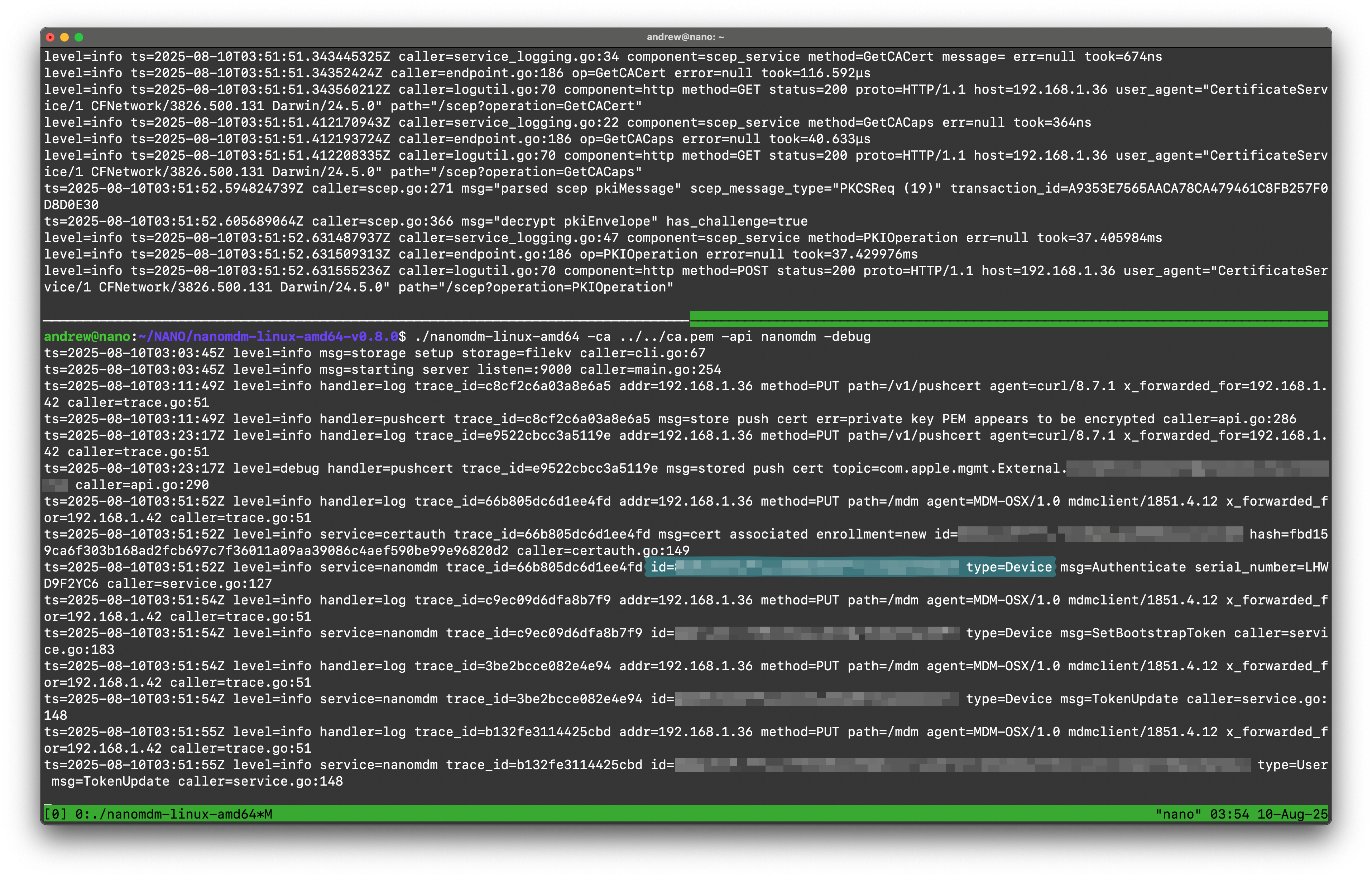
Make a note of your device id in the log, where I highlighted.
- Run a check-in to test it out!
curl -u nanomdm: nanomdm 'https://nano.openedmac.com/v1/push/{Device ID}'
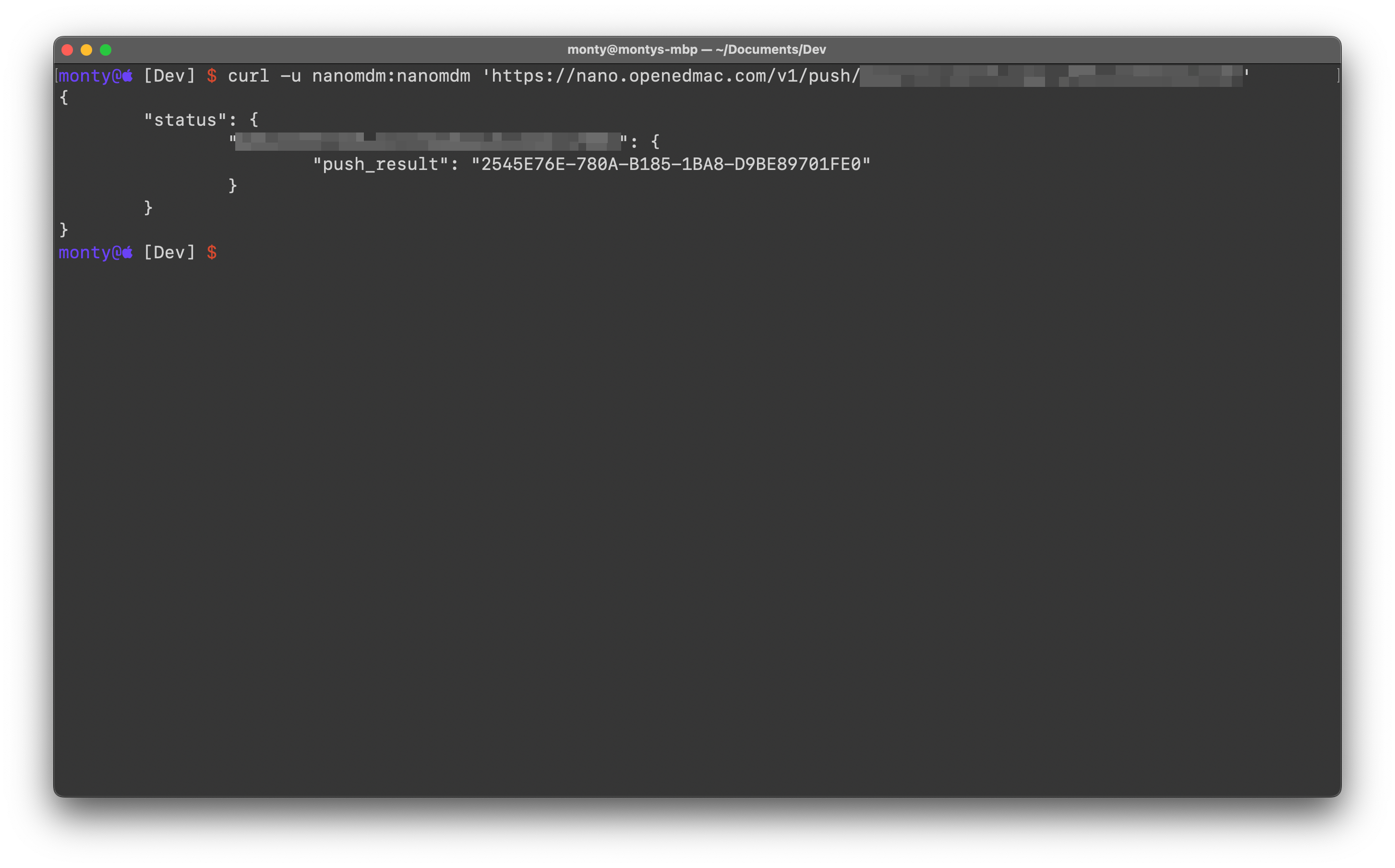
If you get an error, check your certificates and ngrok tunnel.
- Use cmdr.py to run some more tests. (cmdr.py is in the nano.zip)
./cmdr.py -r | curl -T - -u nanomdm:nanomdm 'https://{mdm_server_url}/v1/enqueue/{Device ID}'
Should give you a response similar to this:
{
	"status": {
		"{Device ID}": {
			"push_result": "3F93EB05-1A2E-5C8E-B094-787700129D3F"
		}
	},
	"command_uuid": "dc56ac5e-462a-4b39-9639-29e4b725551a",
	"request_type": "ProvisioningProfileList"
}
./cmdr.py -r will queue a random (read-only) mdm command so you can make sure the whole setup is working. Run ./cmdr.py for a bit more explaination/options.
After all that we have mdm @home. Time to mess around for real!