My Goal
I wanted to use a VDI image from SEED Labs in my Proxmox instance since I already had that running and would much rather have it running on that than my desktop machine. I also wanted to be able to access both Proxmox and the VM remotely when I’m not at home. I already have Tailscale set up on my home network with exit nodes and subnet routers so I won’t go over that with detail but I did have to enable spilt dns to have hostnames resolve.
Setting Up the VM
Getting the File
The first you need to do is get the VDI image on the Proxmox host. You can do this many ways but since my VDI is available from the SEED Lab website for download, I ssh’d into the Proxmox machine and downloaded the file with wget:
wget {url of download}
For me that was:
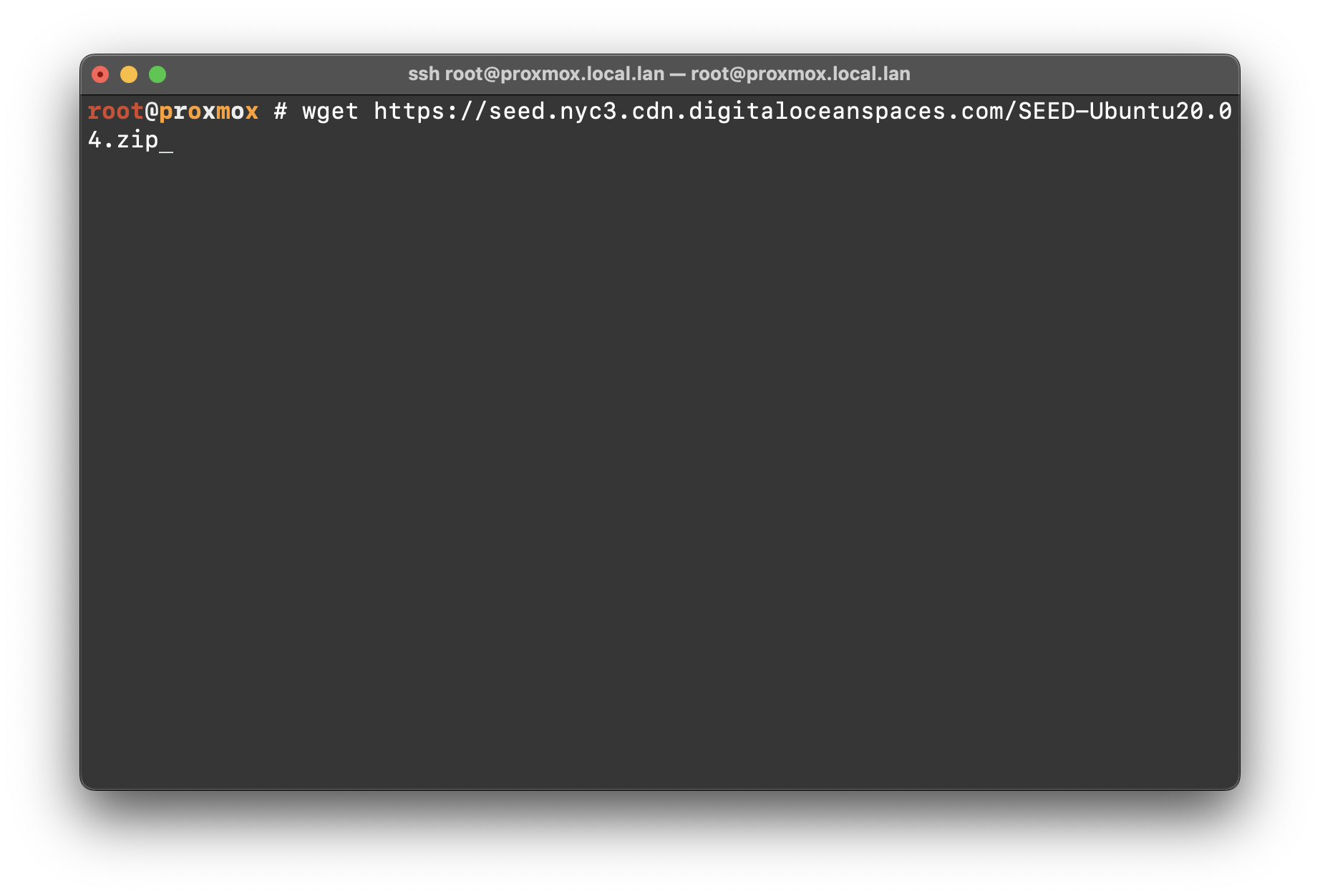 (yes I know “don’t do things as root”, oh well, just this once 😉)
Initial VM Settings
On the Proxmox UI:
click “Create VM”.
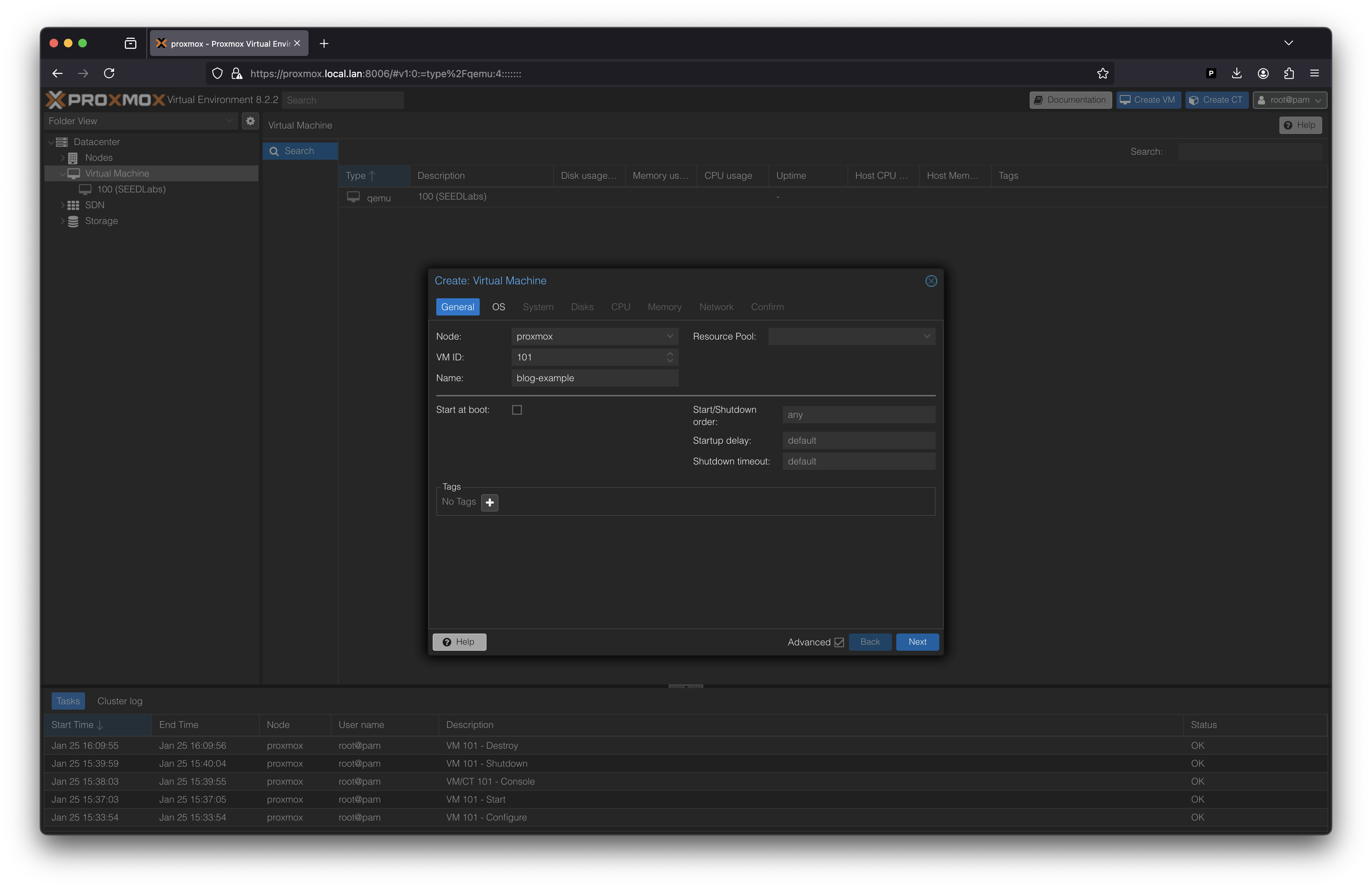
select “Do not use any media” under OS.
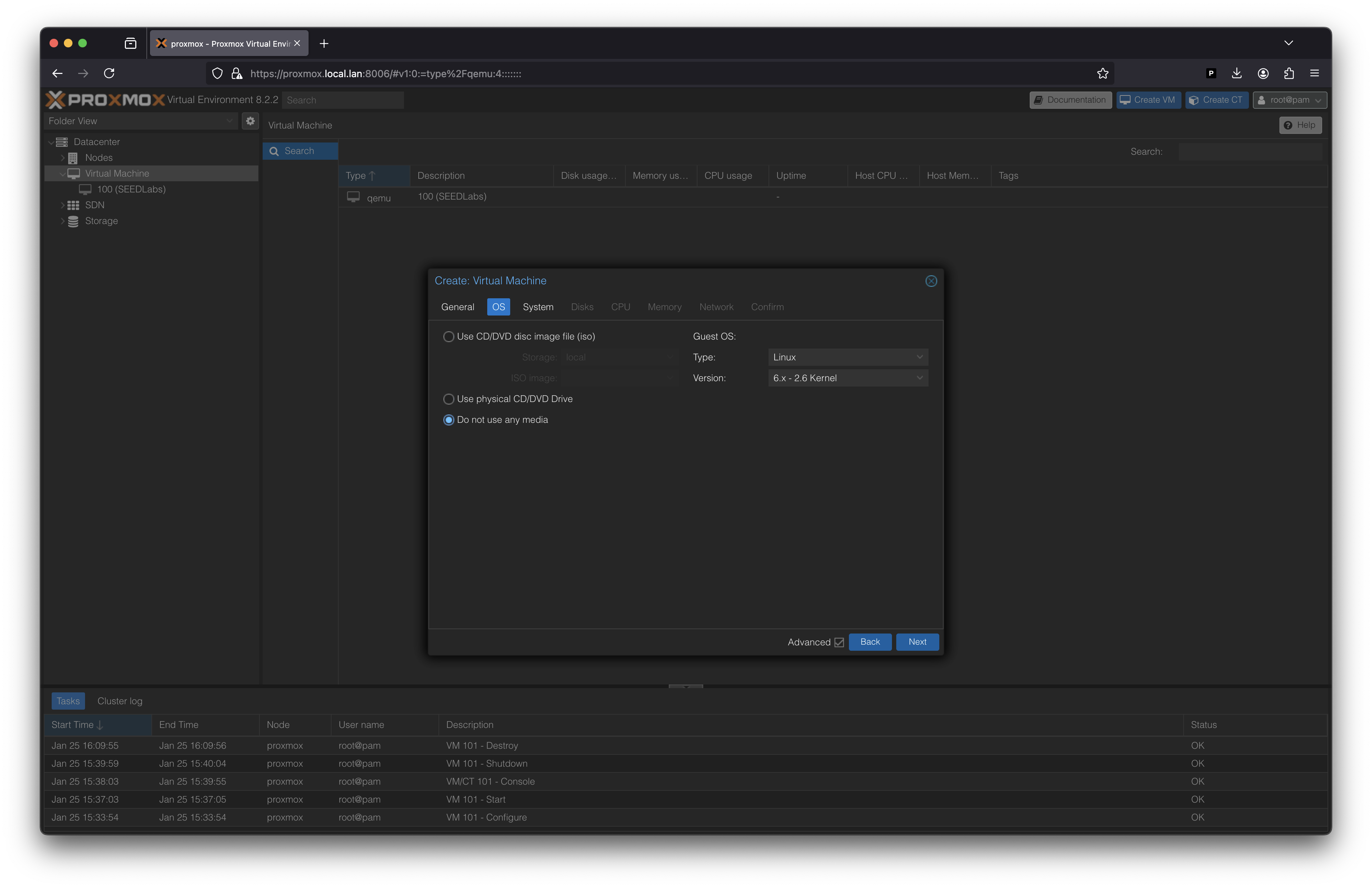
leave defaults under System.
under Disks, select your volume on Proxmox and disk size.
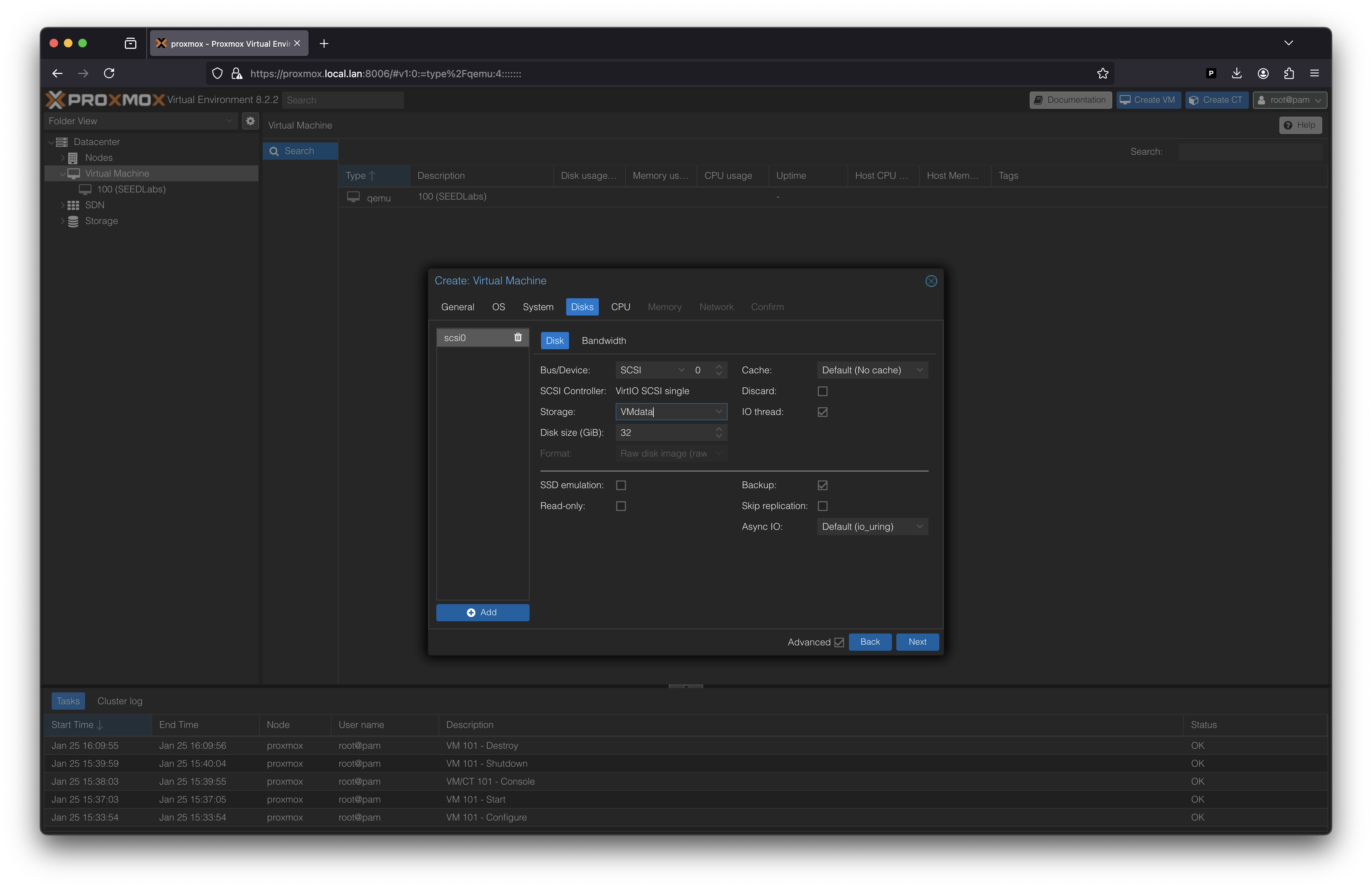
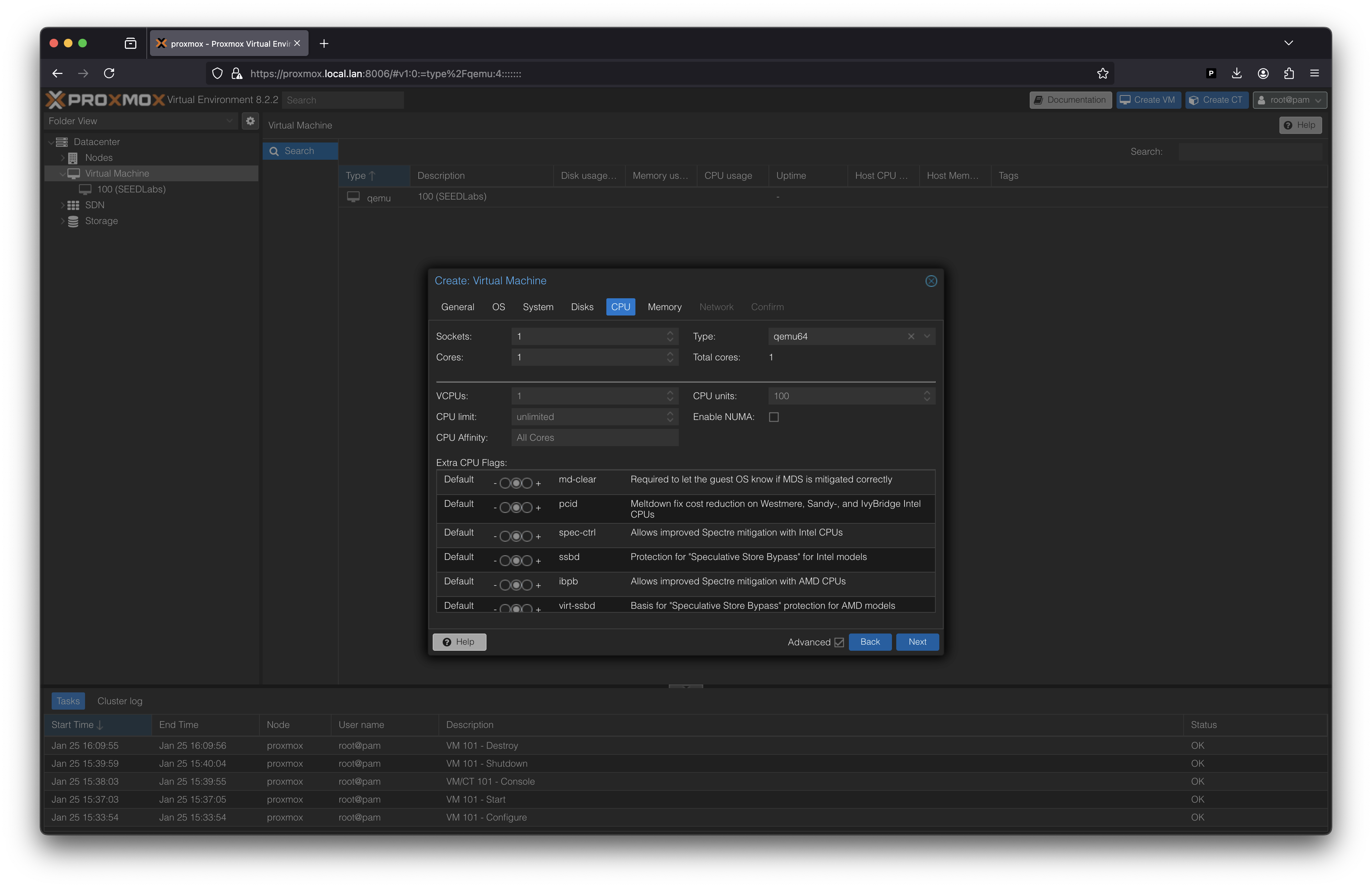
set your CPU and core count. Note: I had to set my type to “qemu64”.
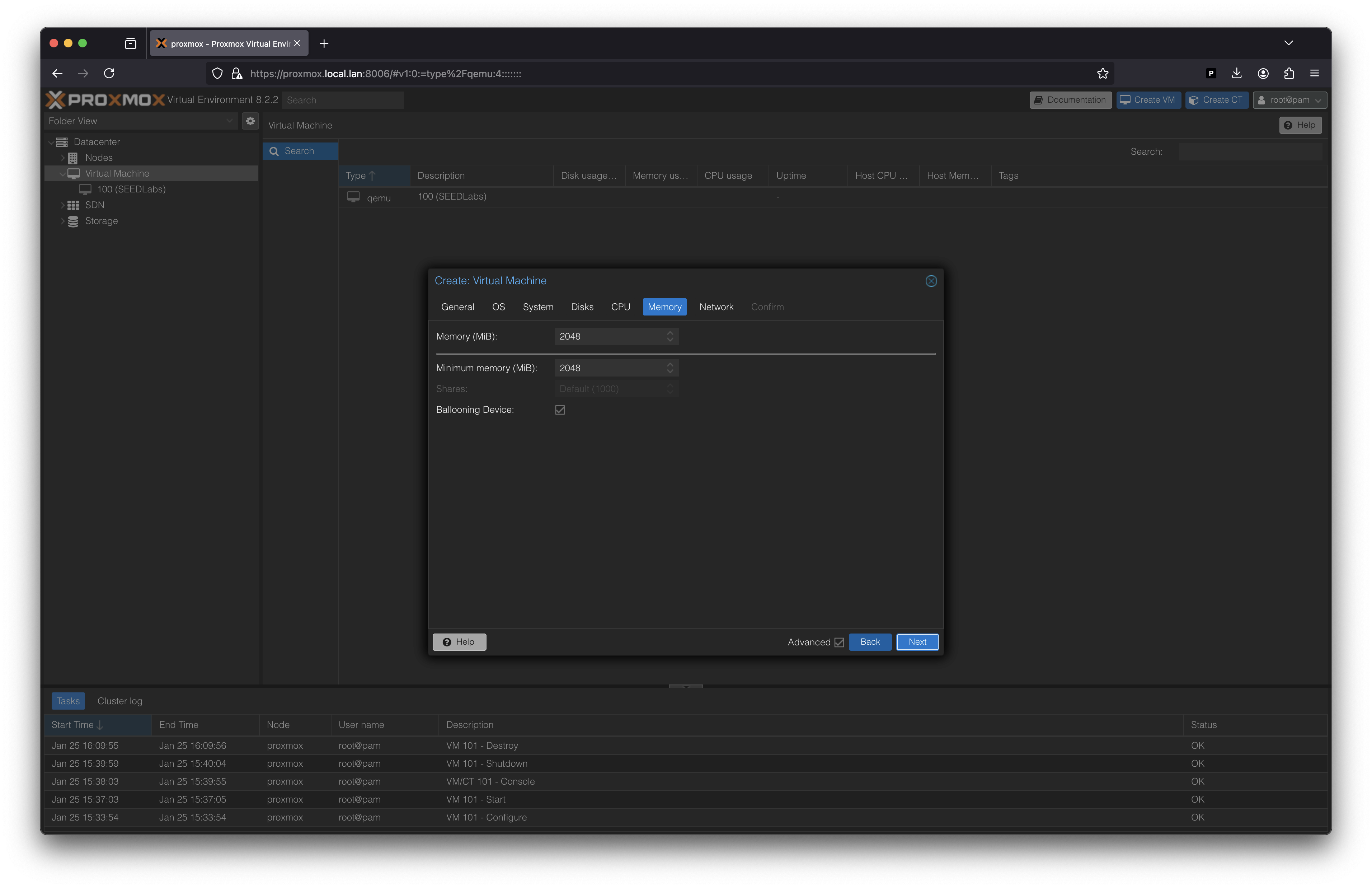
set your memory amount for the VM.
set your network device if necessary.
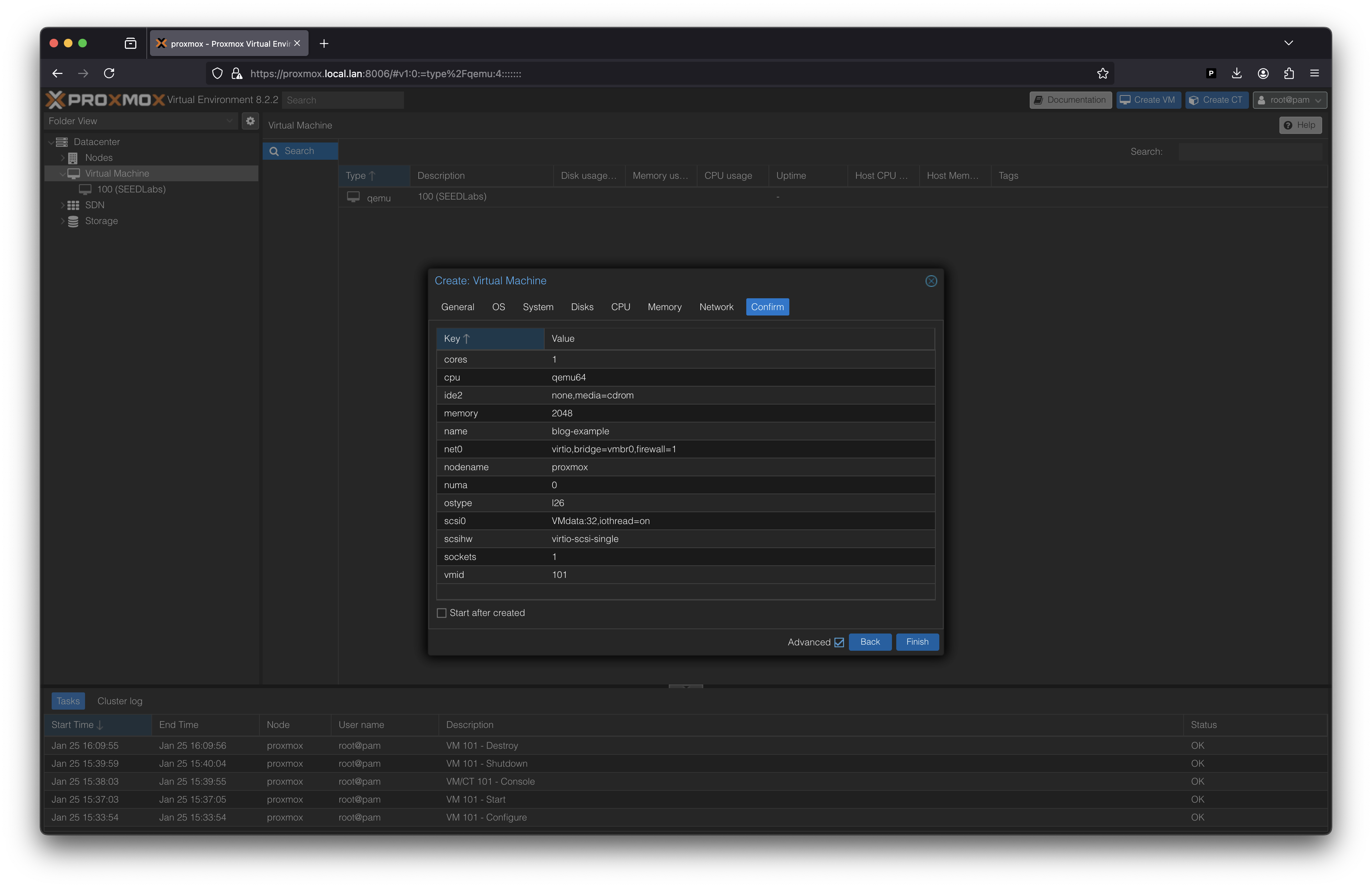
confirm your VM settings. Note your vmid value here, mine is 101.
Detach that Disk
On the Proxmox UI:
select your VM in the “Datacenter” side bar.
select “Hardware”
select “Hard Disk”
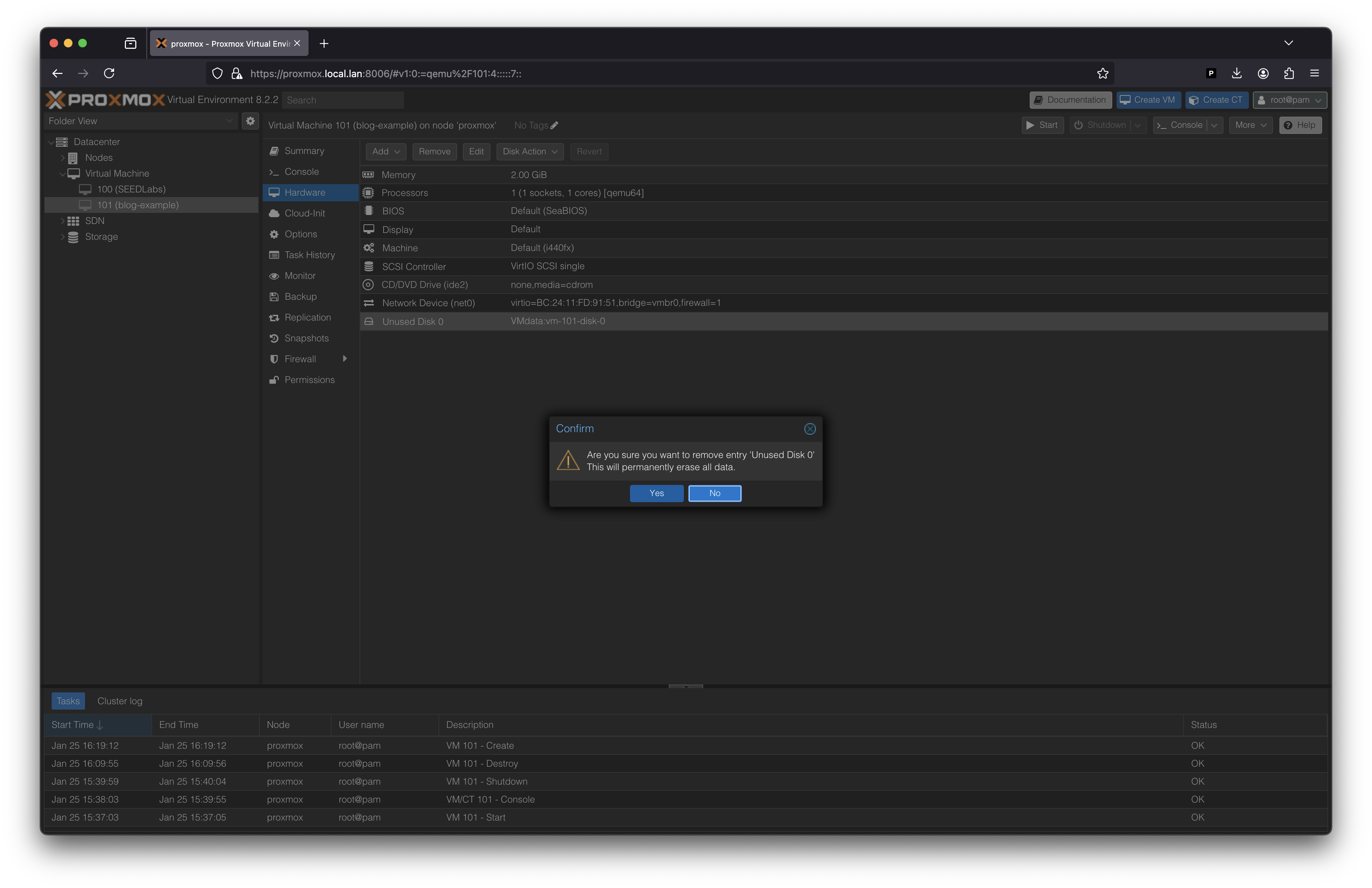
click “Detach” and confirm it.
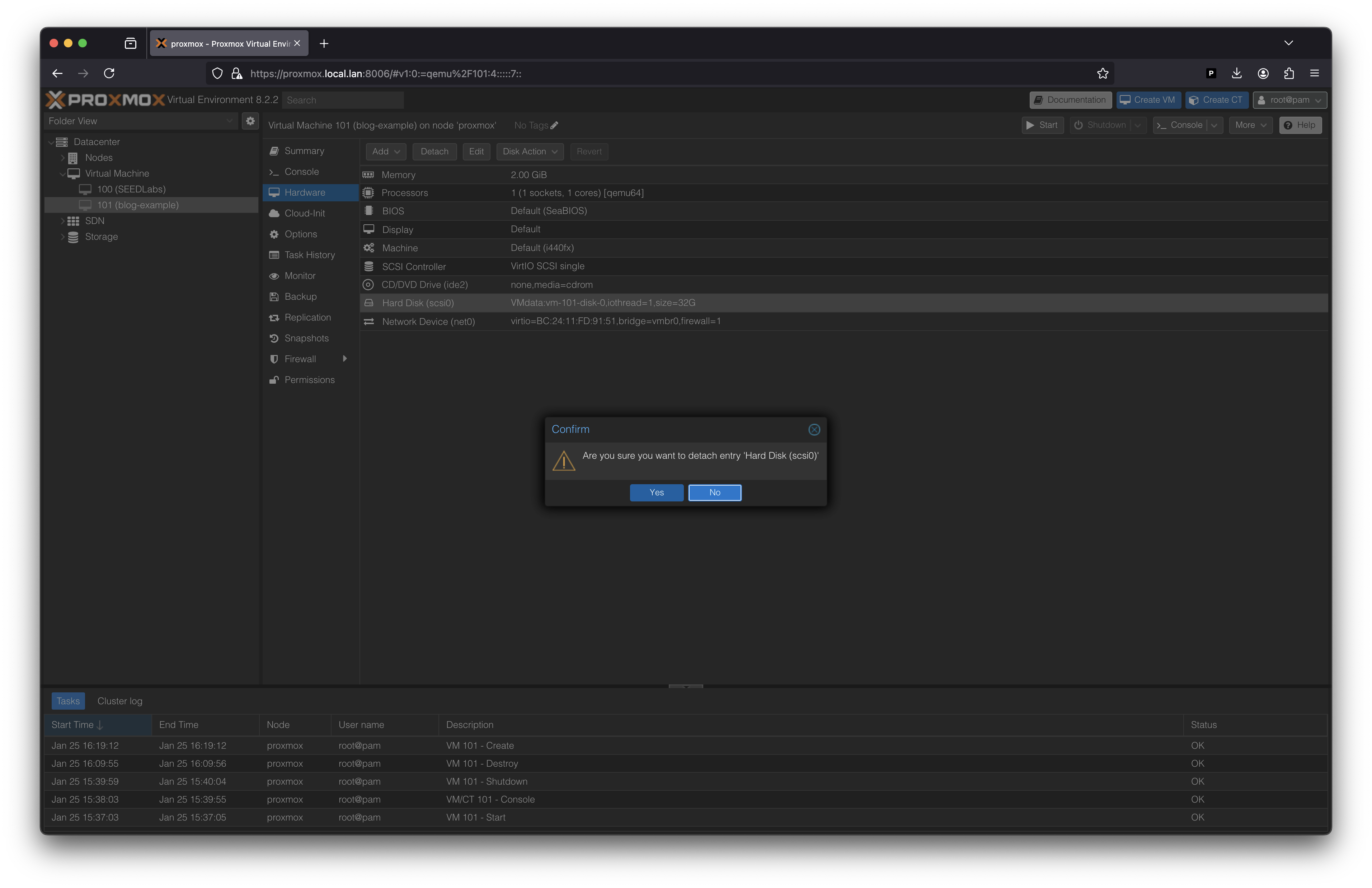
- click “Remove” and confirm it.
Manually Add Your Image
We’re going to use qm to set the disk to our VDI image. So in the shell for the Proxmox host:
qm importdisk {vmid} /path/to.vdi {proxmox-volume}
so for my example I did:
qm importdisk 101 /SEED.vdi VMdata
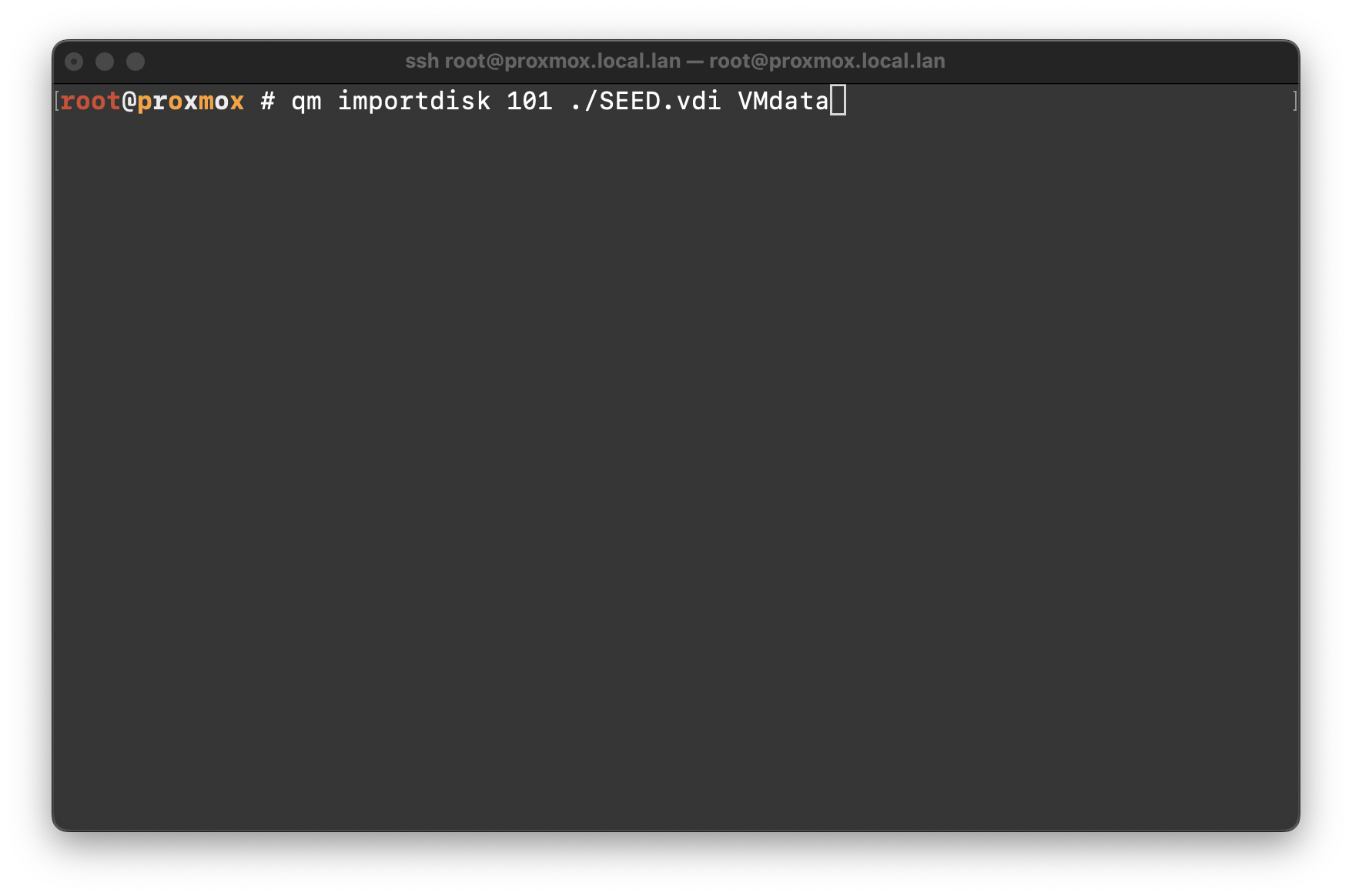
This will take a minute depending on the size of the VDI file.
Load and Boot
Back on the web UI:
under your VM, under “Hardware” select your new unused disk (the vdi we just imported).
set it to SATA.
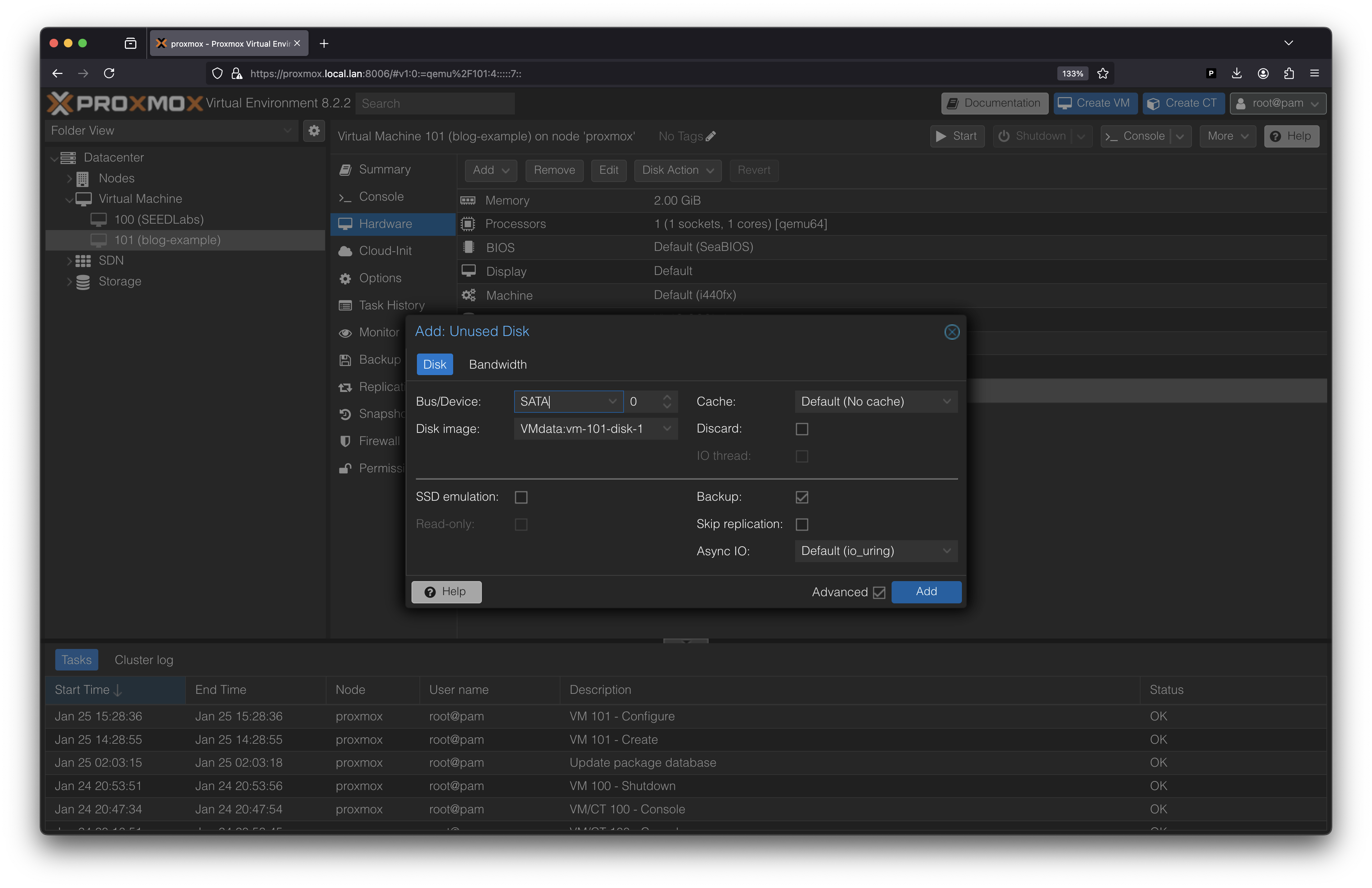
click “Add”.
go from “Hardware” to “Options”.
click on “Boot Order”.
enable your disk and drag it to the top of the order.
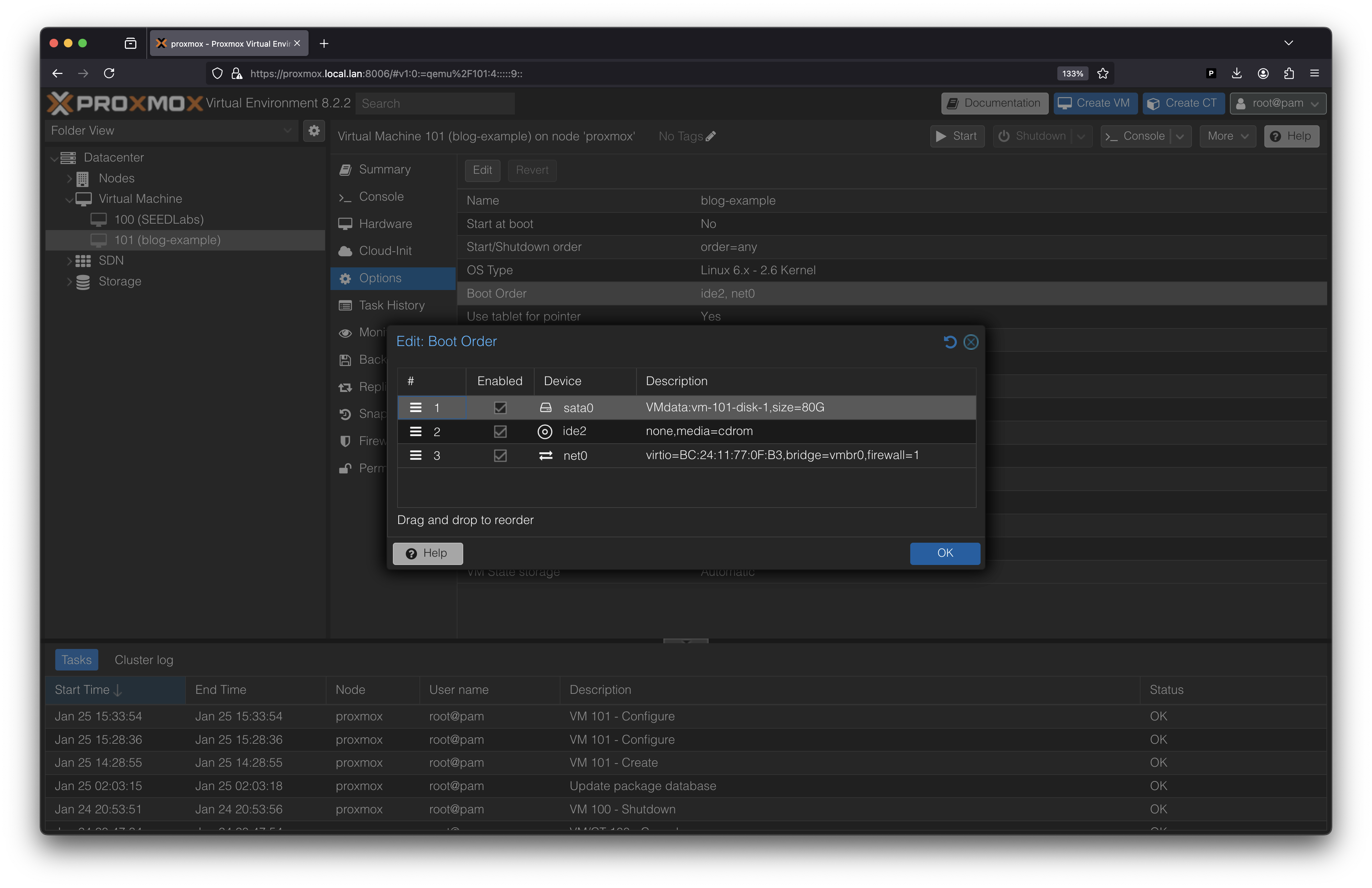
click “OK”.
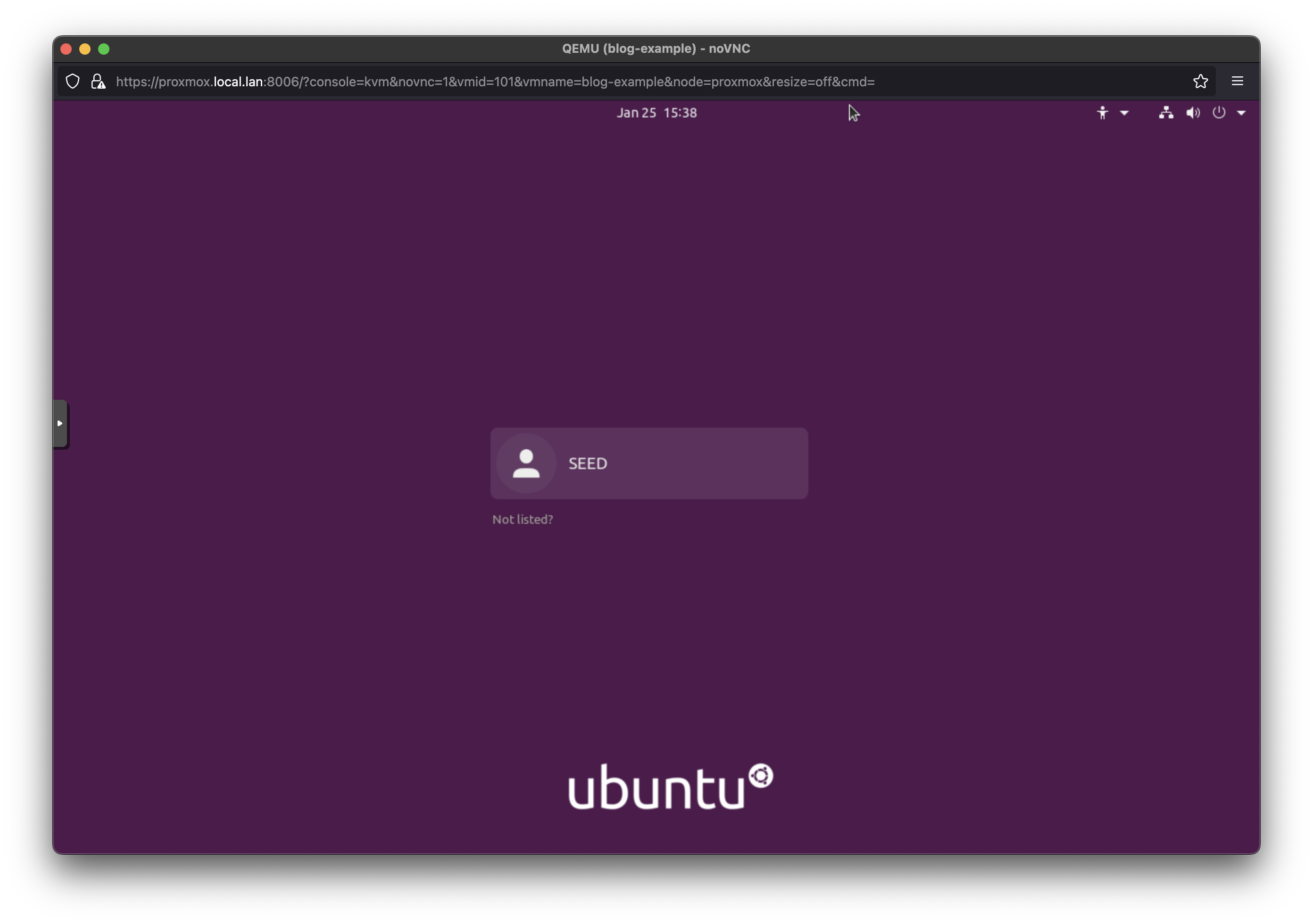
start the VM. You should see the Task log in the bottom view with a “OK” status or you can access the console to check.
Tailscale Access
I have an Apple TV on my LAN acting as a Tailscale Exit Node and Subnet Router. Just follow their documentation and guides for that. I will show what I had to do to be able to access the Proxmox web UI through my tailnet.
The behavior I wanted
I want to connect to my Tailnet on my laptop, type in the address bar “http://proxmox.local.lan:8006” and get the web UI, as I do at home. Later I plan to do reverse proxy things to be able to leave out the port number.
Spilt DNS
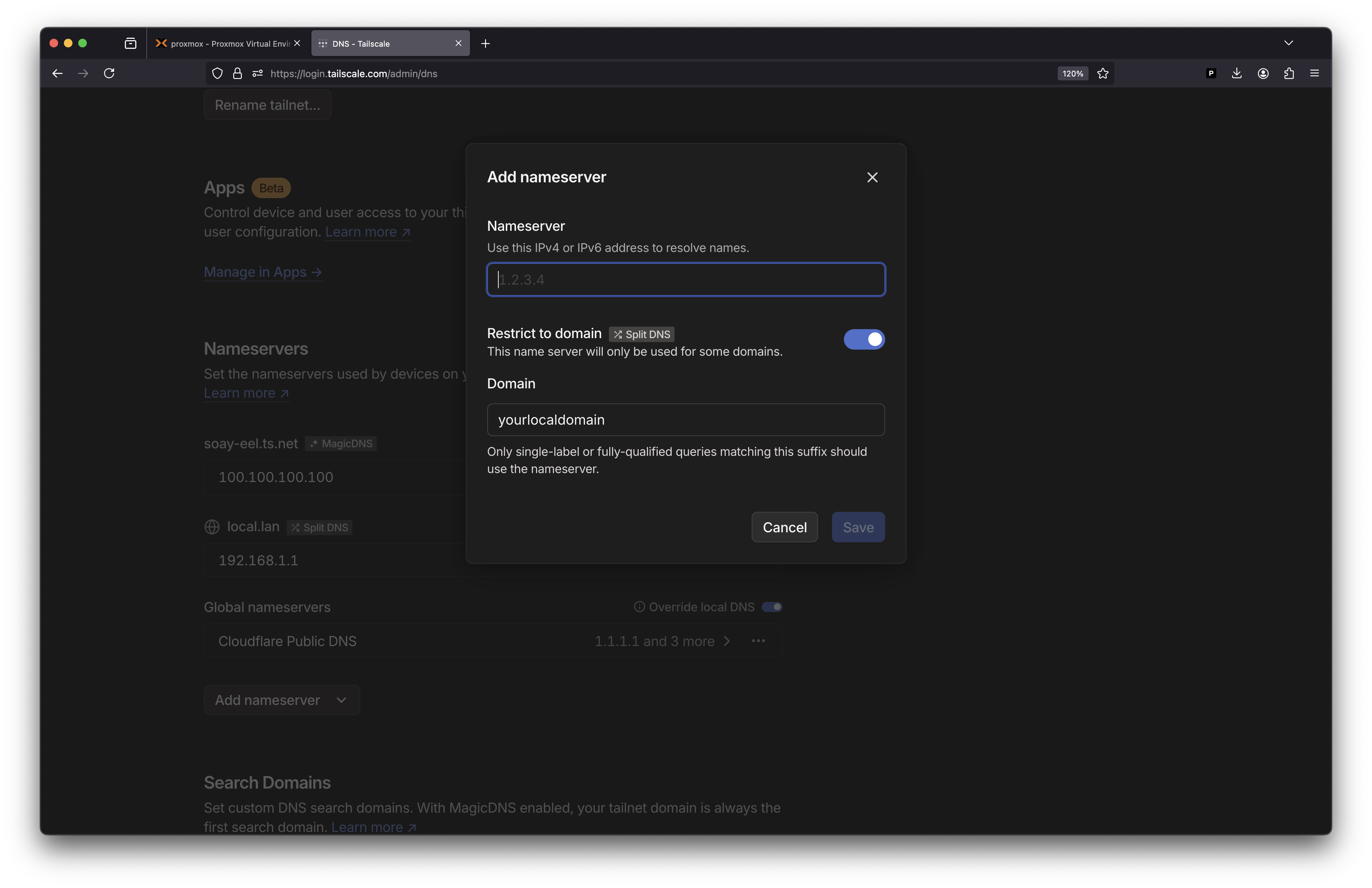
In Tailscale there is a feature for this called “Spilt DNS”.
To enable it:
- go to the DNS tab in the Tailscale Admin Console.
- under “Nameservers”, click “Add Nameserver”.
- for the IP, this is your local DNS IP, most likely your router, i.e., 192.168.1.1 or the like.
- toggle the “Restrict to domain” to ON for Spilt DNS.
- for the domain, this is your LAN’s domain, most routers lets you set this, mine in local.lan
Conclusion
This was a cool introduction to using Proxmox and also having services available when I’m out and about. I hope I made my steps clear and it works for you as well.
Sources
I’m not a Proxmox expert or QEMU god so lots of the same steps can be followed from the legend, David Yin at https://www.yinfor.com/2019/03/another-way-to-move-virtualbox-vdi-to-proxmox-ve.html